Invite people
Add a person to a group: show them a one-time code, they scan it on their iPhone, and you approve them with the 4-digit code on their screen.
Before you start
1. Before you start
Root, super admins and admins of a group can invite people to it. An admin can invite users, a super admin can invite admins and users, and root can invite anyone. You need a gateway that supports group invites; if you do not see Invite people on the Team tab, ask your administrator to update the gateway.
The person needs OSH - Signer on their own iPhone. They do not need an account first: the code takes them to your gateway.
Open Invite people
2. Open Invite people
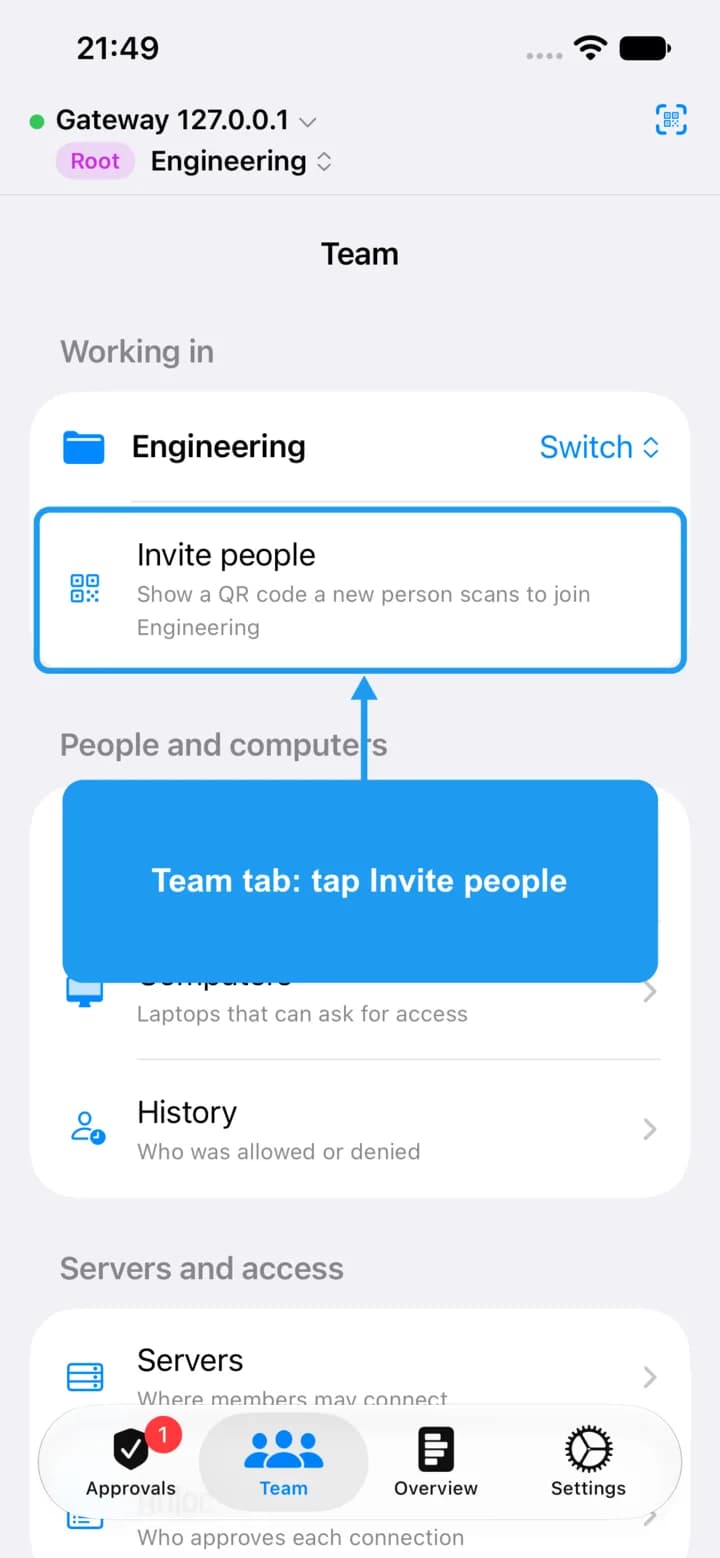
Choose the group you are working in (see Create a group), then on the Team tab tap Invite people.
Choose the role
3. Choose the role
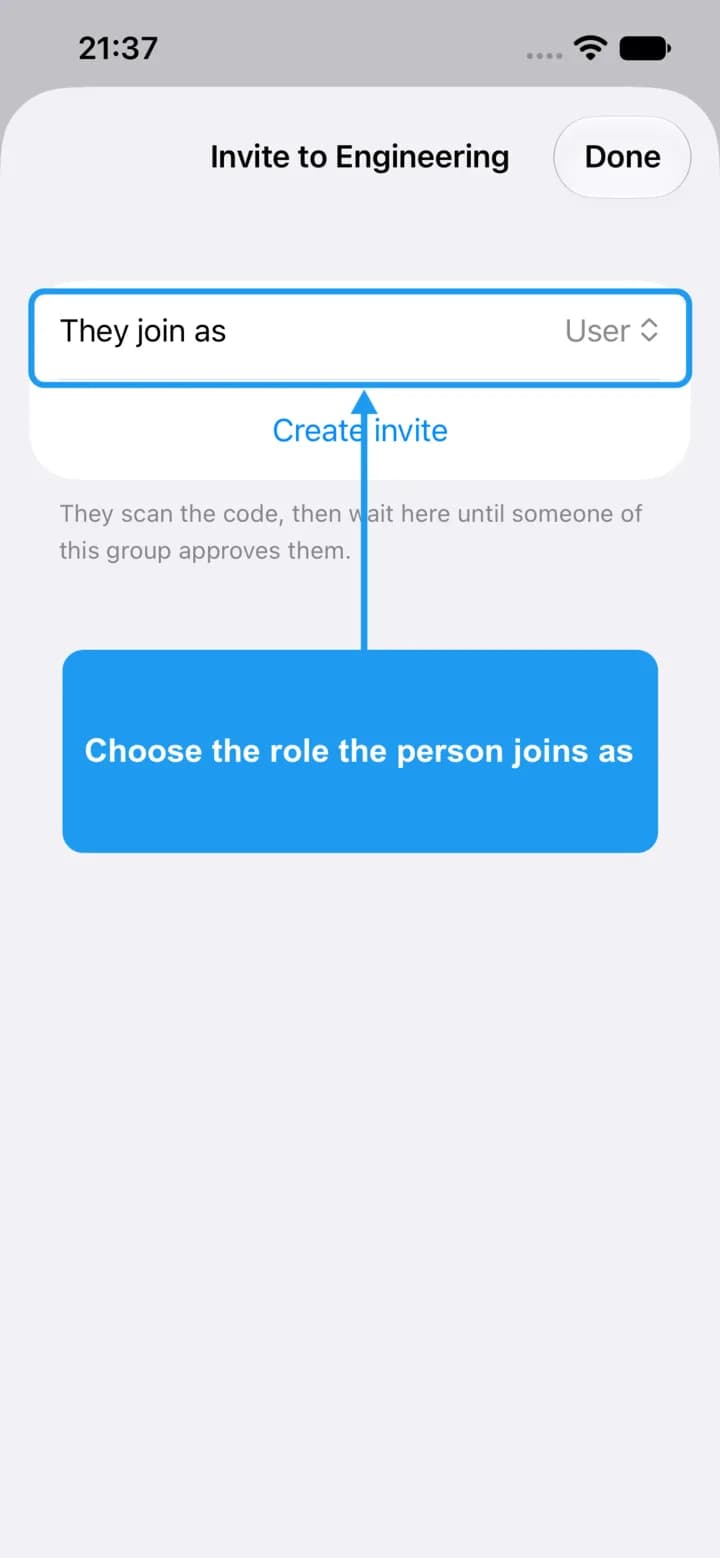
Tap They join as and pick the role the person gets in this group. Most people join as User. You can change the role later (see Give a role).
Create the invite
4. Create the invite
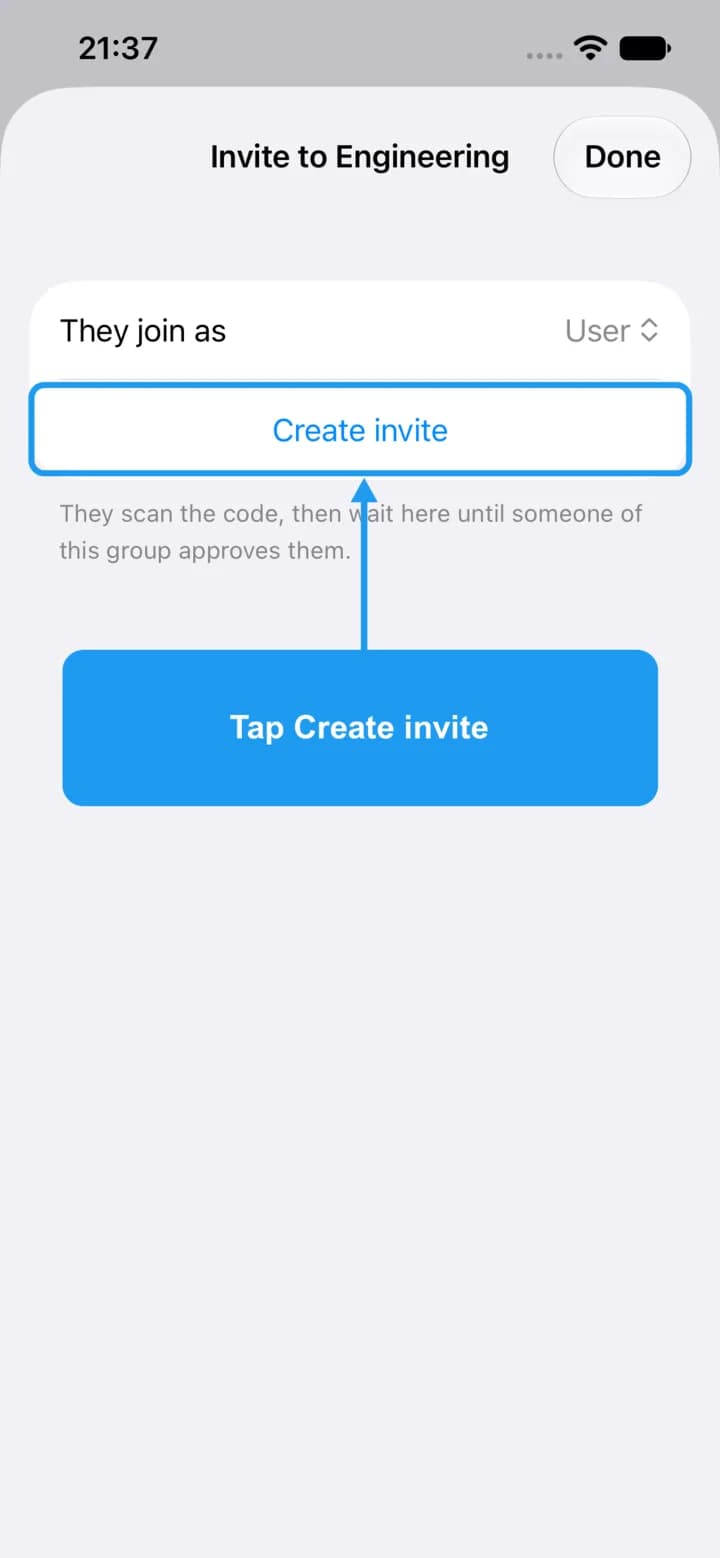
Tap Create invite.
Show the code
5. Show the code
A one-time code appears. Let the person scan it, or tap Share link to send it to them. It works once and expires after a day.
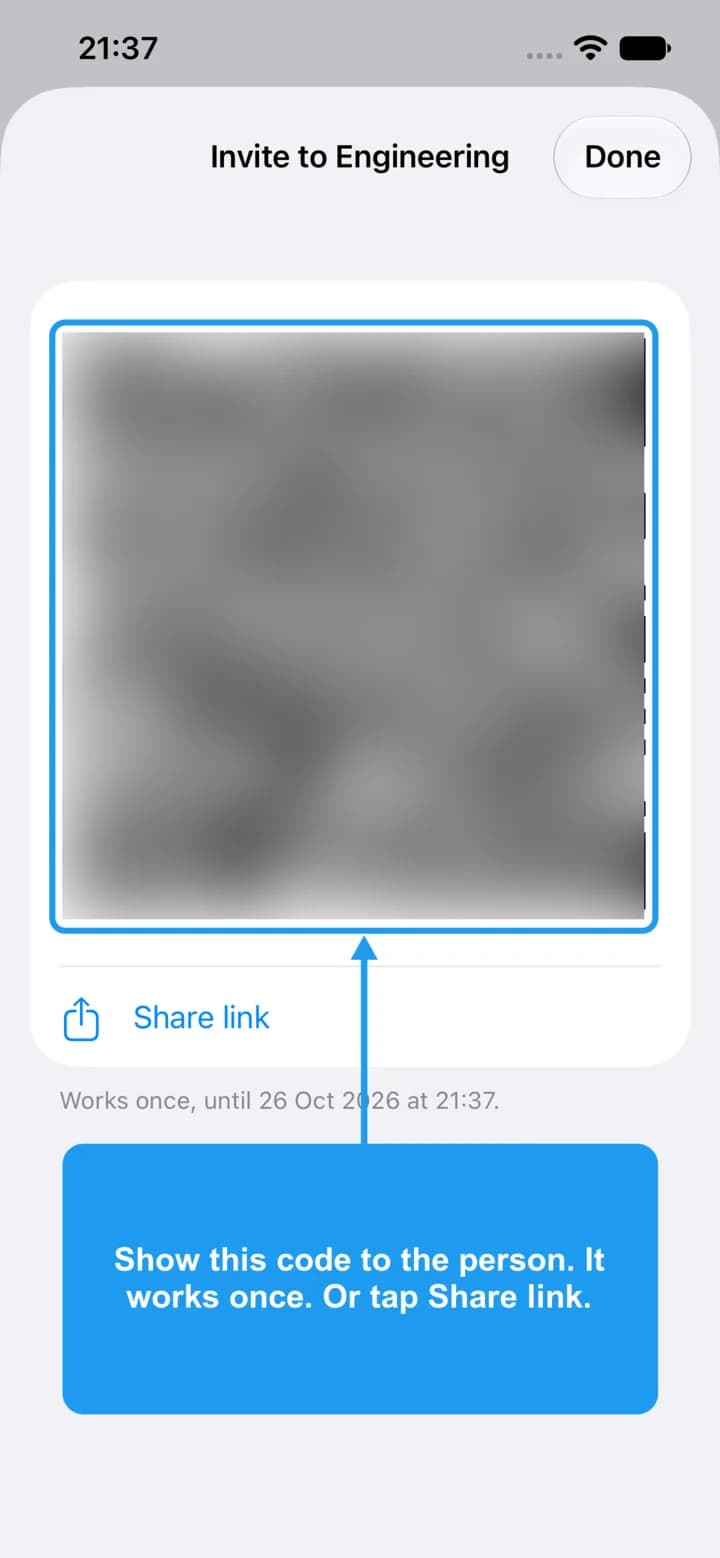
The person scans it
6. The person scans it
On their iPhone they open OSH - Signer and scan the code, or open the link you sent.
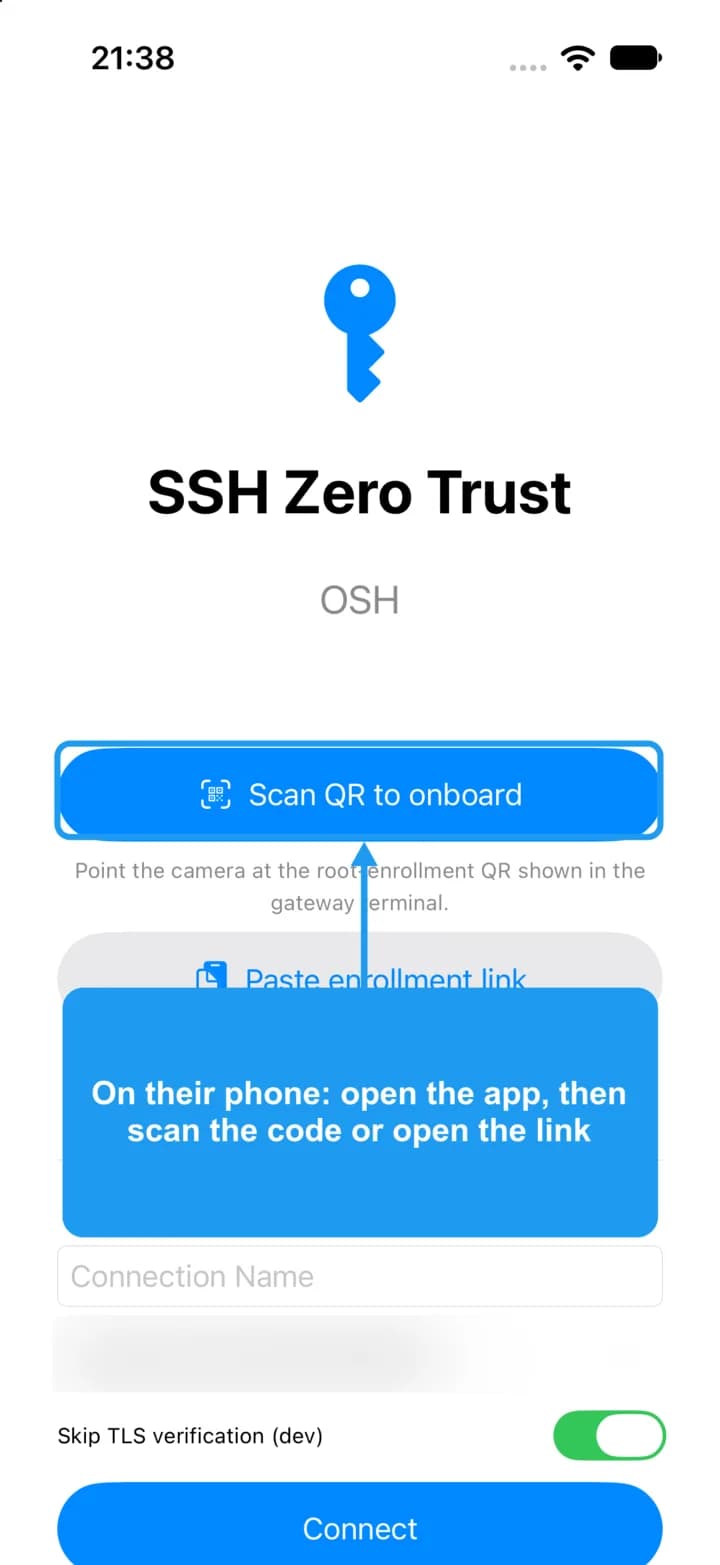
They wait for you
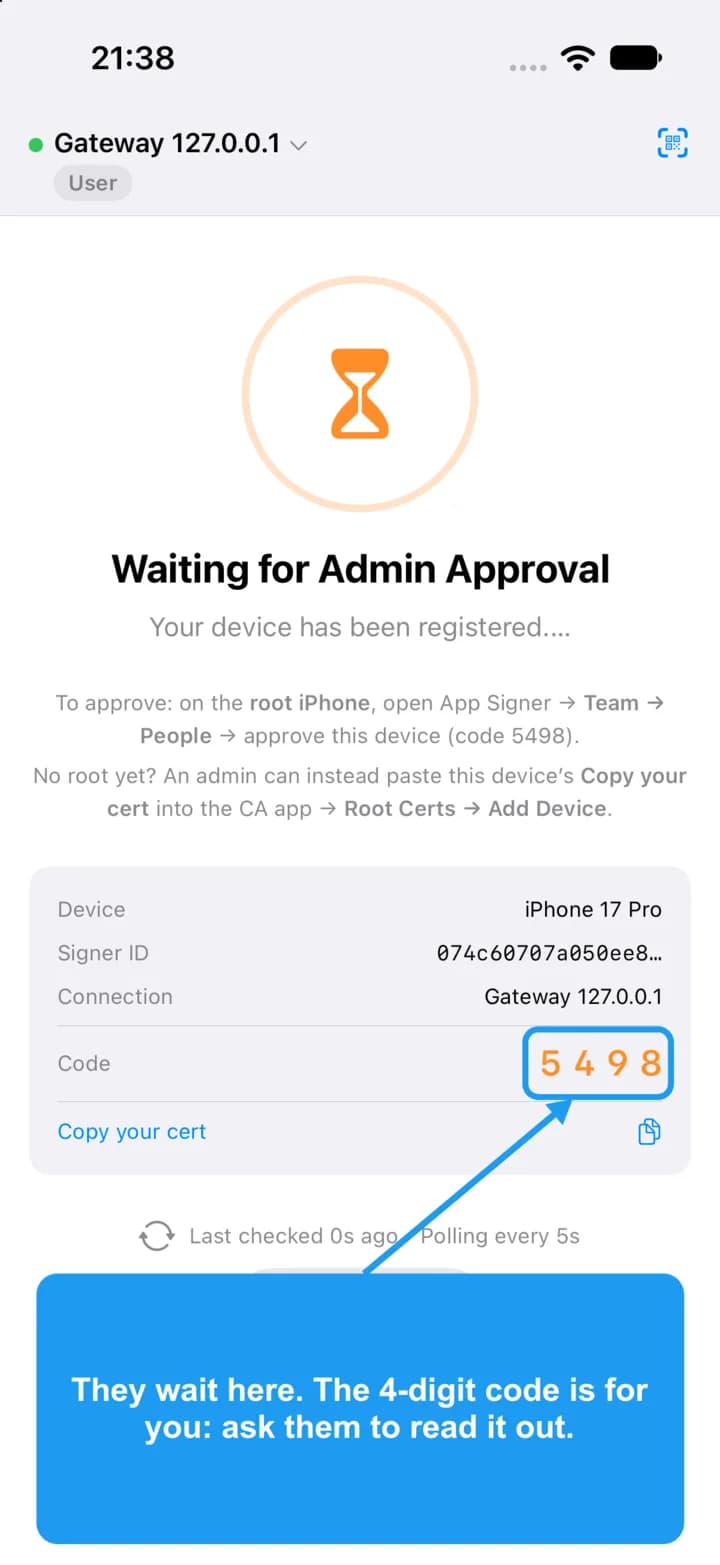
7. They wait for you
Their phone shows Waiting for Admin Approval and a 4-digit code. Ask them to read the code to you.
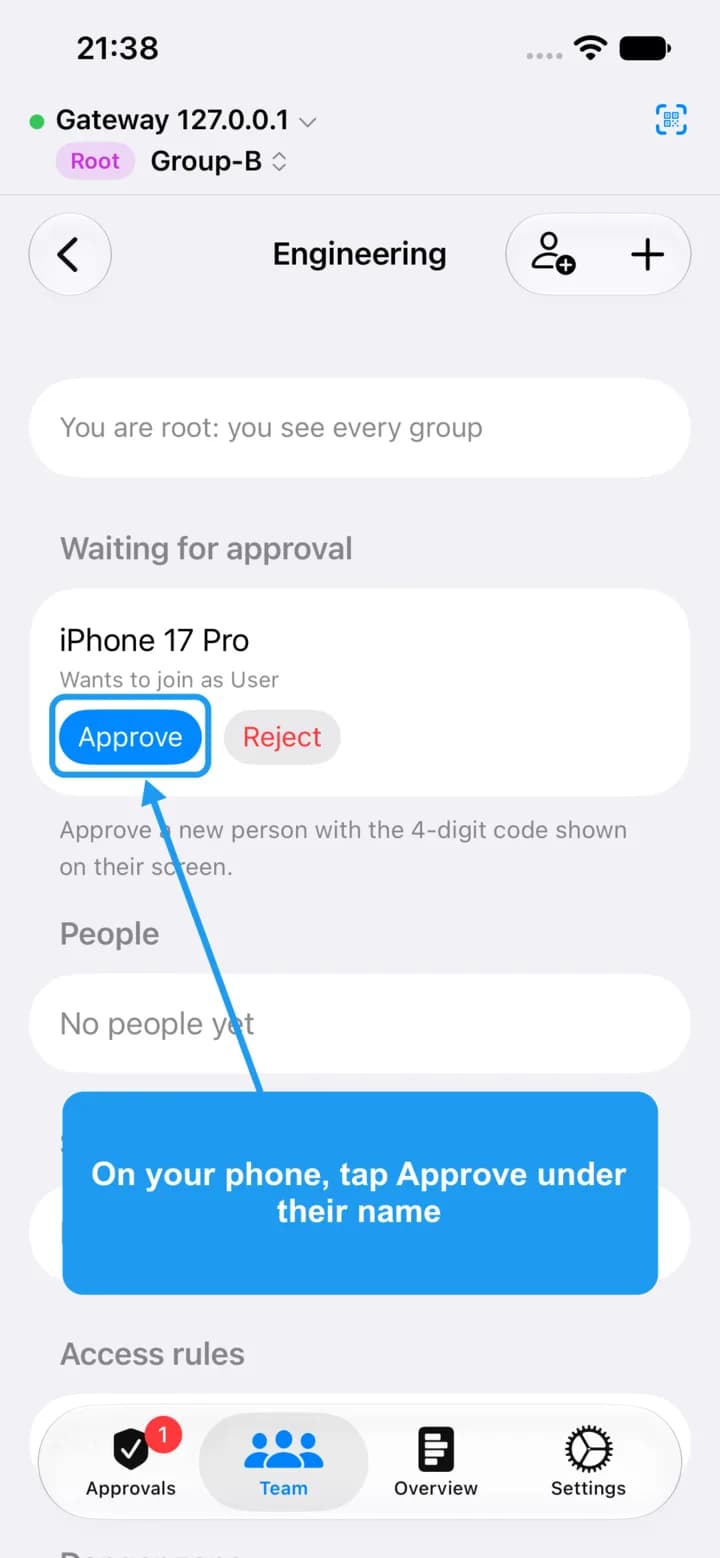
Approve them
8. Approve them
On your phone, open the group on the Team tab. Under Waiting for approval, tap Approve next to their name.
Enter the code
9. Enter the code
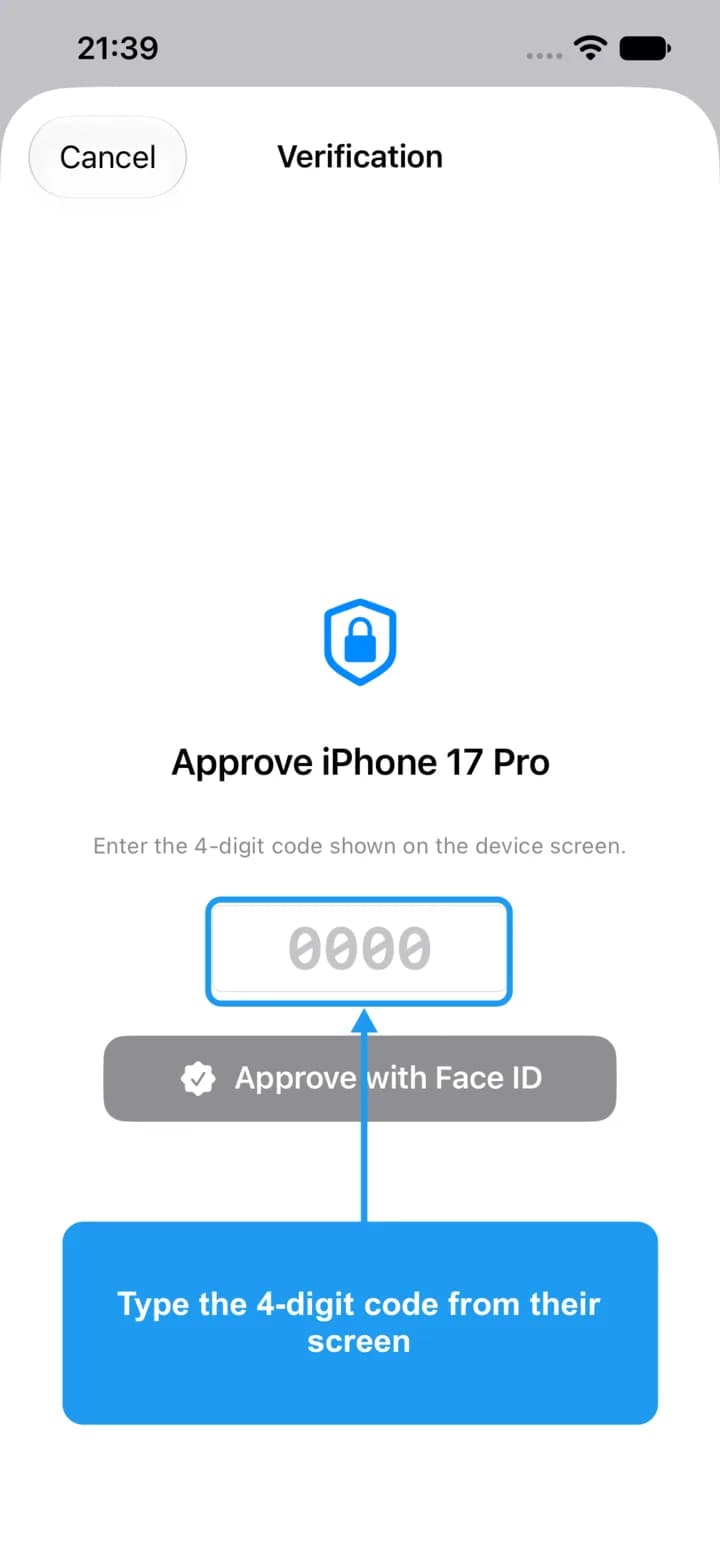
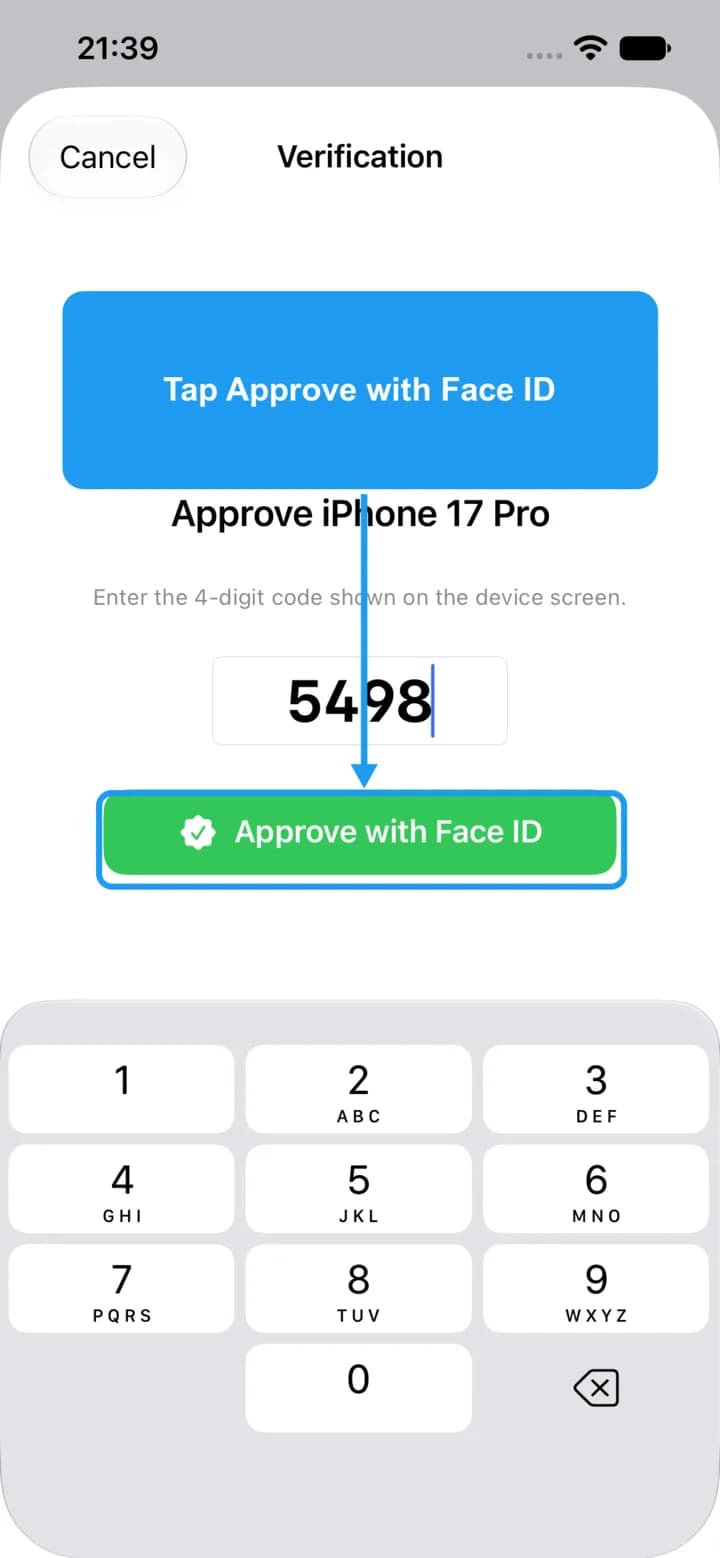
Type the 4-digit code from their screen. This proves you are approving the right person.
Confirm with Face ID
10. Confirm with Face ID
Tap Approve with Face ID and look at your iPhone. Your approval is signed on your phone.
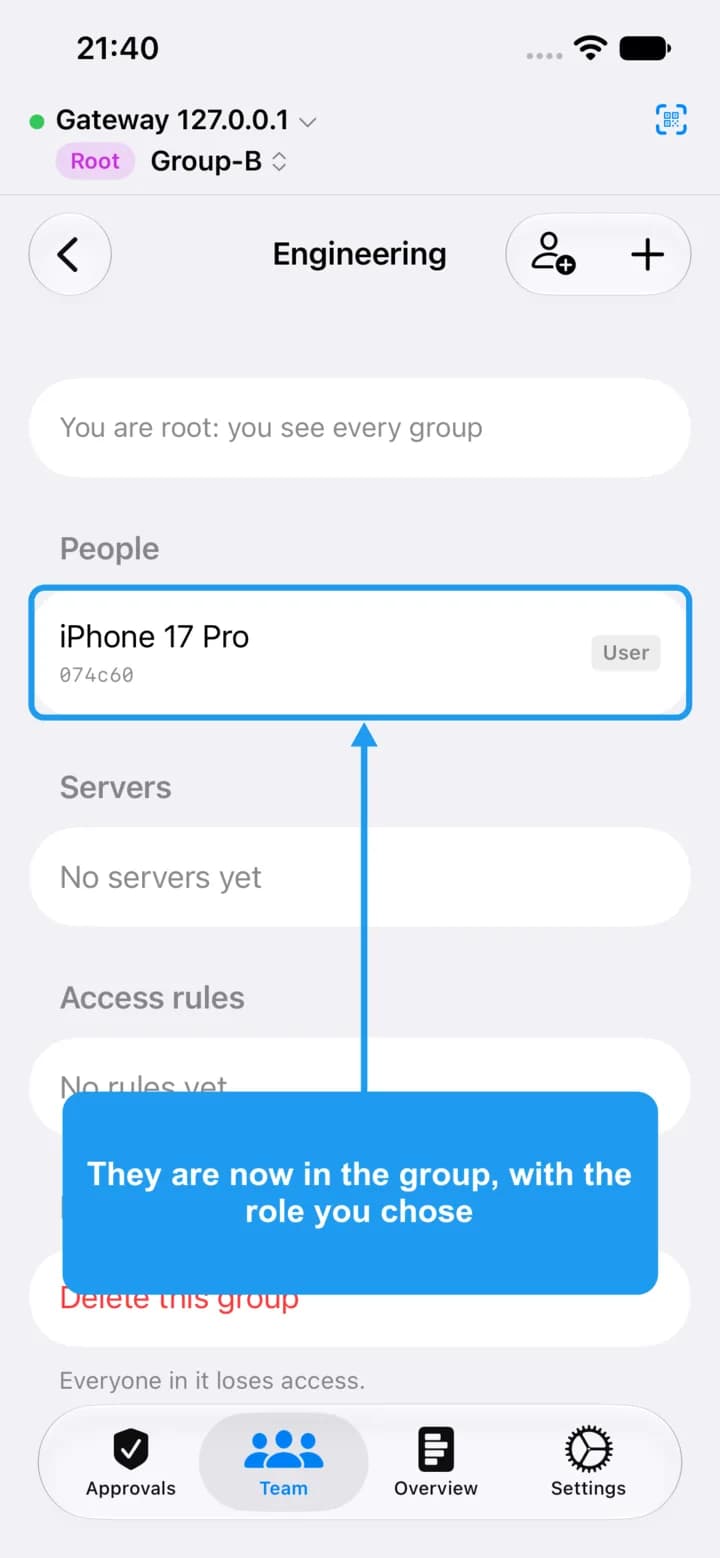
They are in
11. They are in
The person appears under People in the group, with the role you chose.
The invite code works once. If the person waits too long, create a new invite.