Create a group
A group is a team: its people, computers, servers and access rules live together. Root creates groups on the iPhone, in OSH - Signer.
Before you start
1. Before you start
Only root can create a group. You need OSH - Signer 1.0.9 or later on the root iPhone, connected to your gateway.
Everything below happens in OSH - Signer. Each person can have a different role in each group, so a group is also where you decide who may approve what.
Open the Team tab
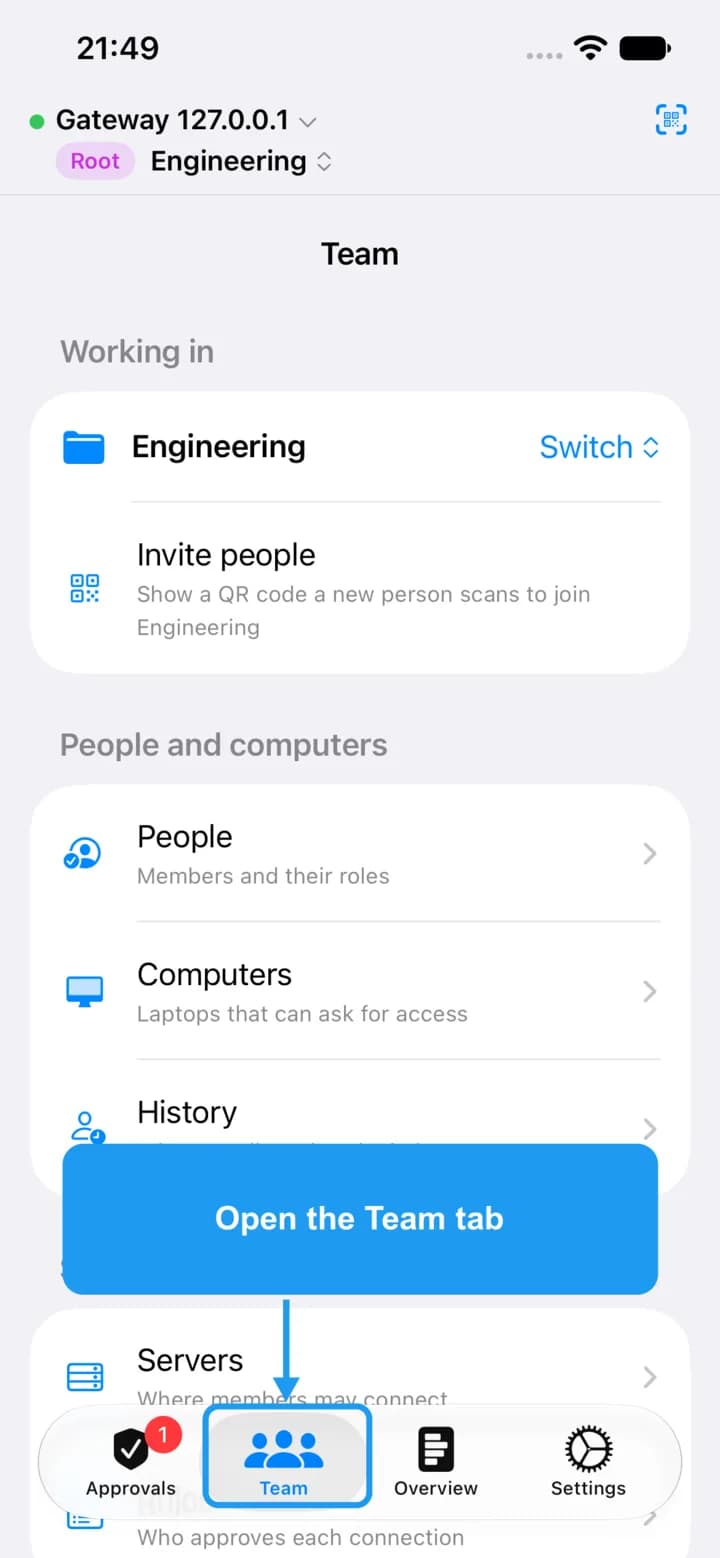
2. Open the Team tab
Tap Team in the bar at the bottom of the screen.
Open Groups
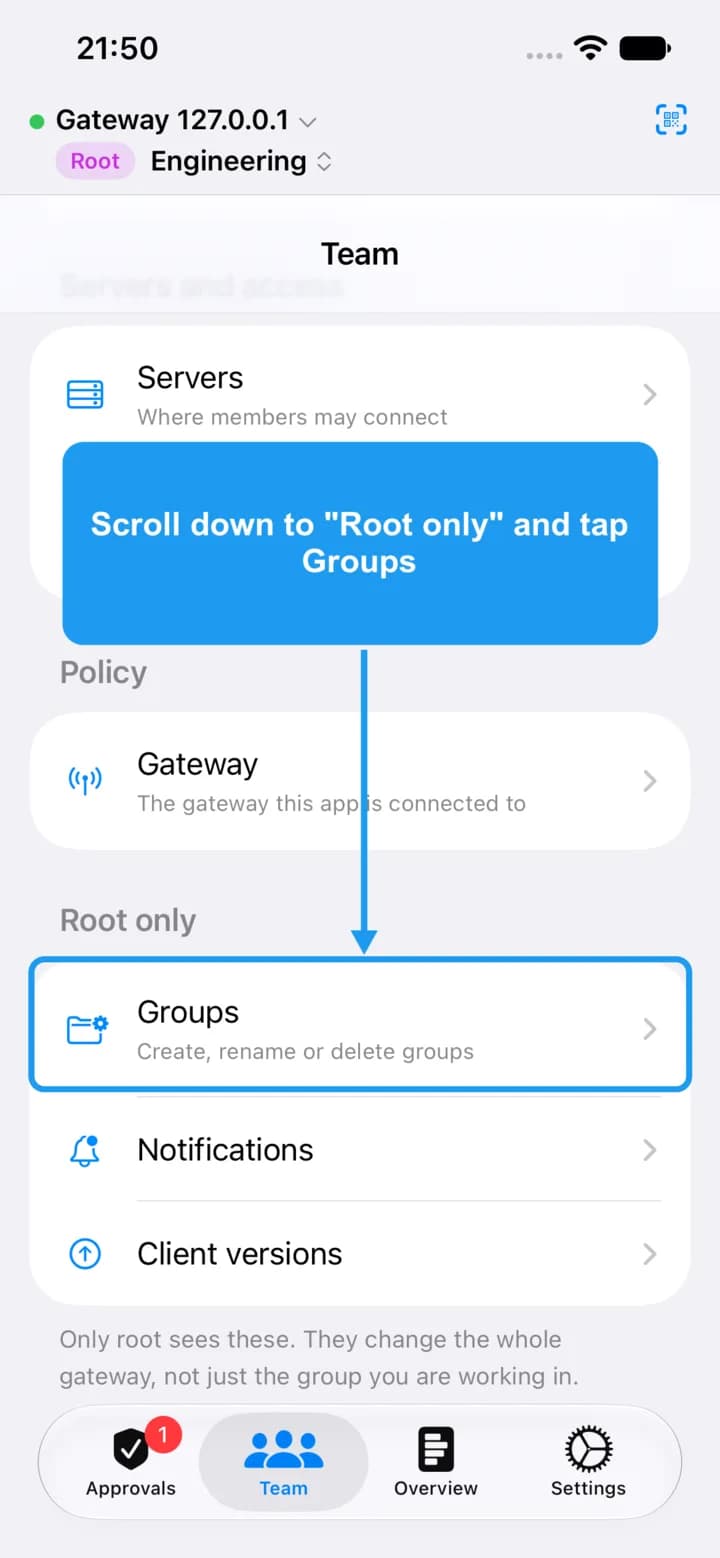
3. Open Groups
Scroll down to the Root only section and tap Groups.
Add a group
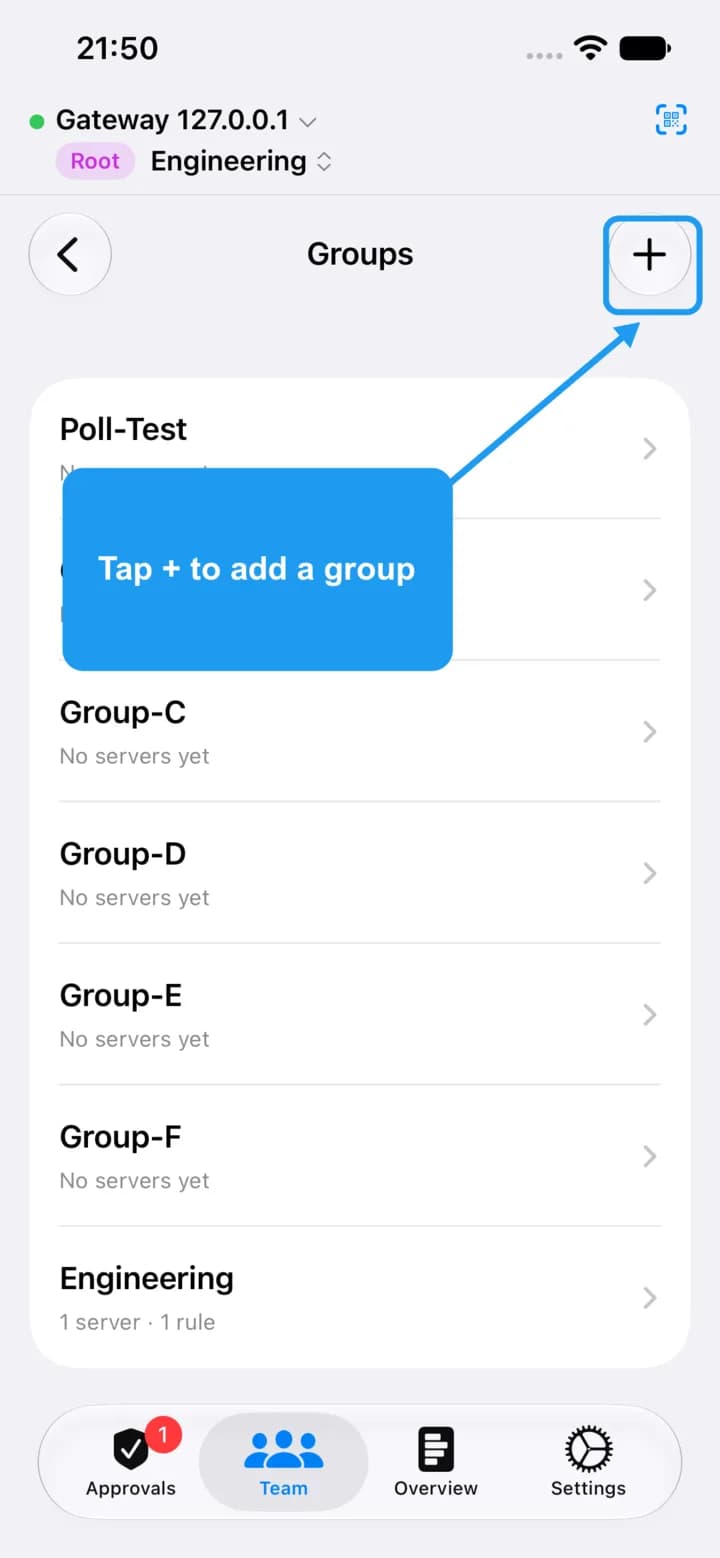
4. Add a group
Tap + in the top right corner.
Name the group
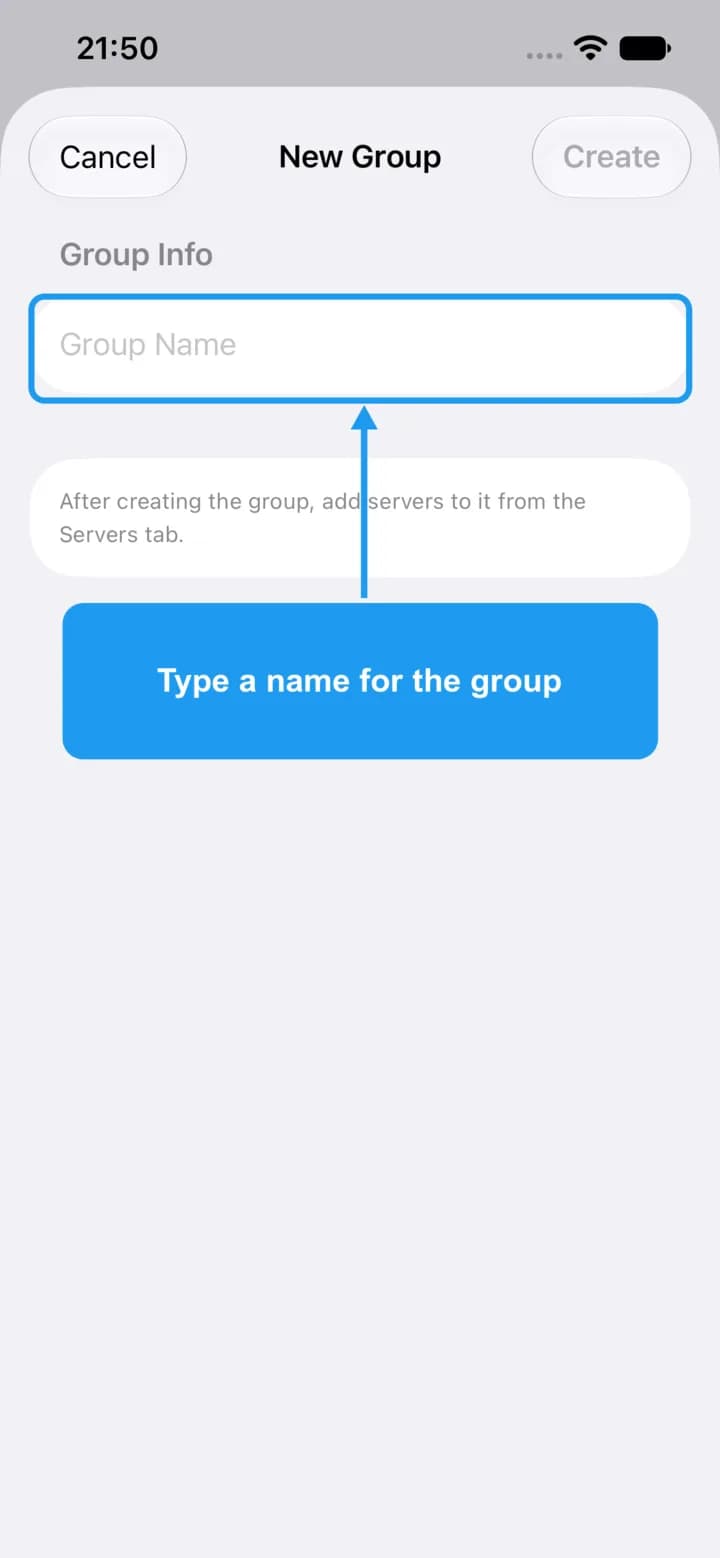
5. Name the group
Type a name people will recognise, such as the team or project.
Create it
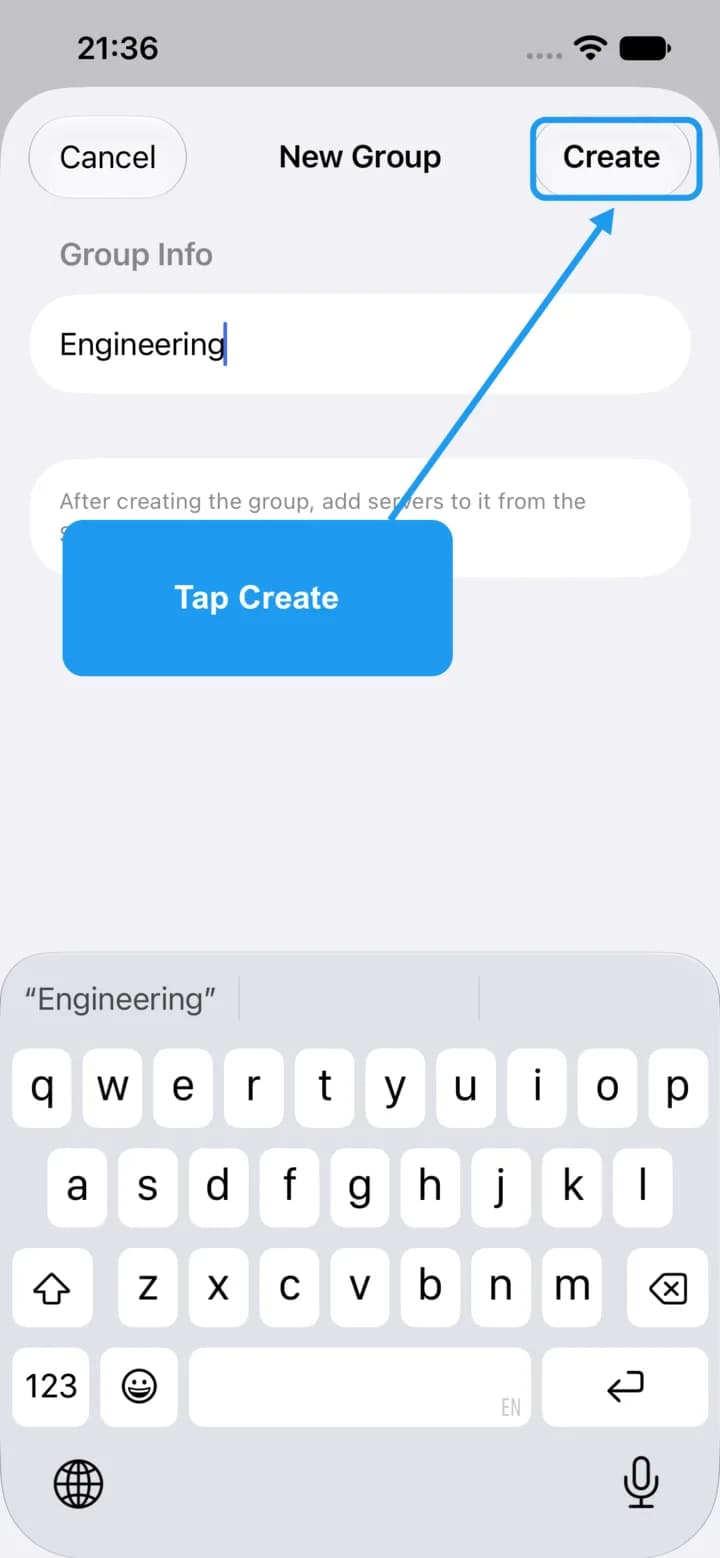
6. Create it
Tap Create.
Find your new group
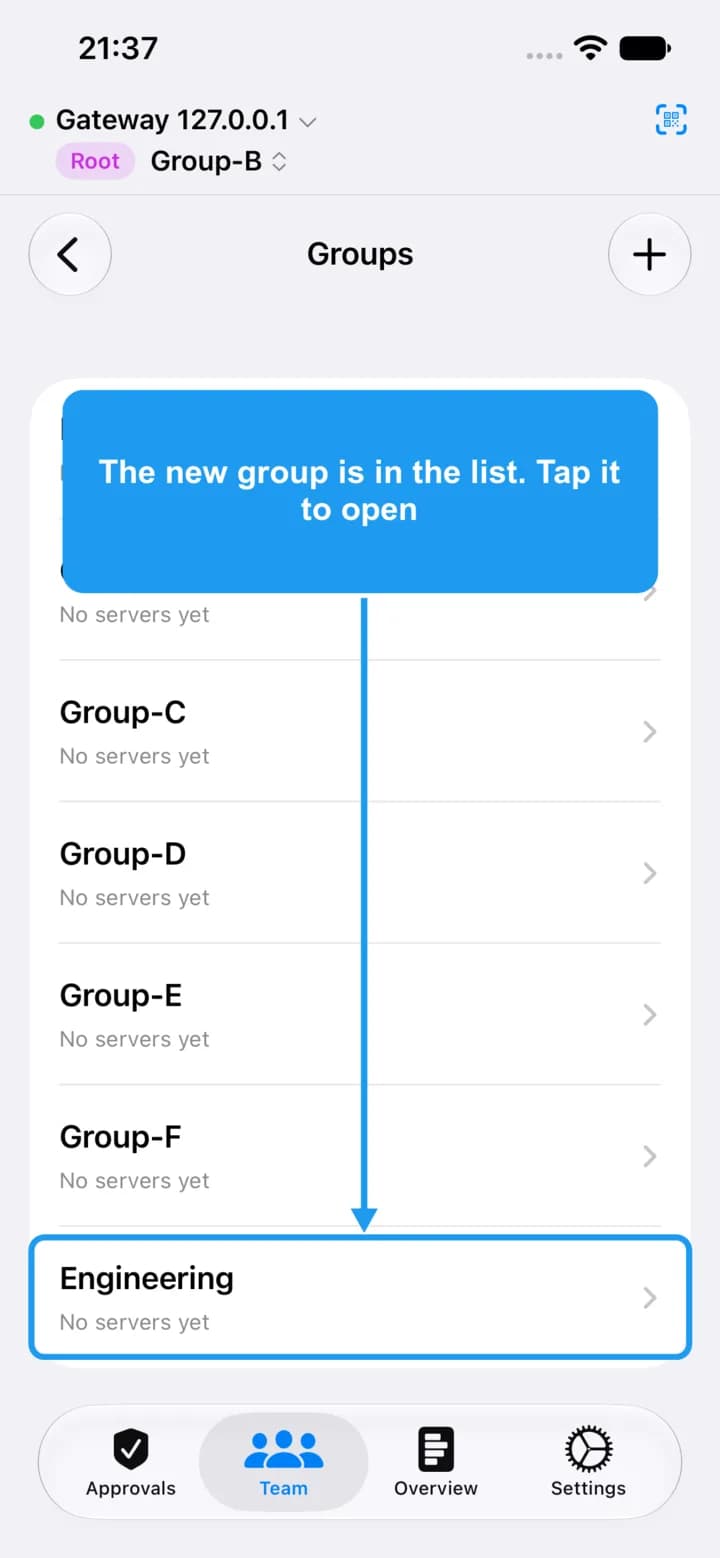
7. Find your new group
The group appears in the list. Tap it to see its people, servers and access rules. All three are empty for now.
Work in the group
8. Work in the group
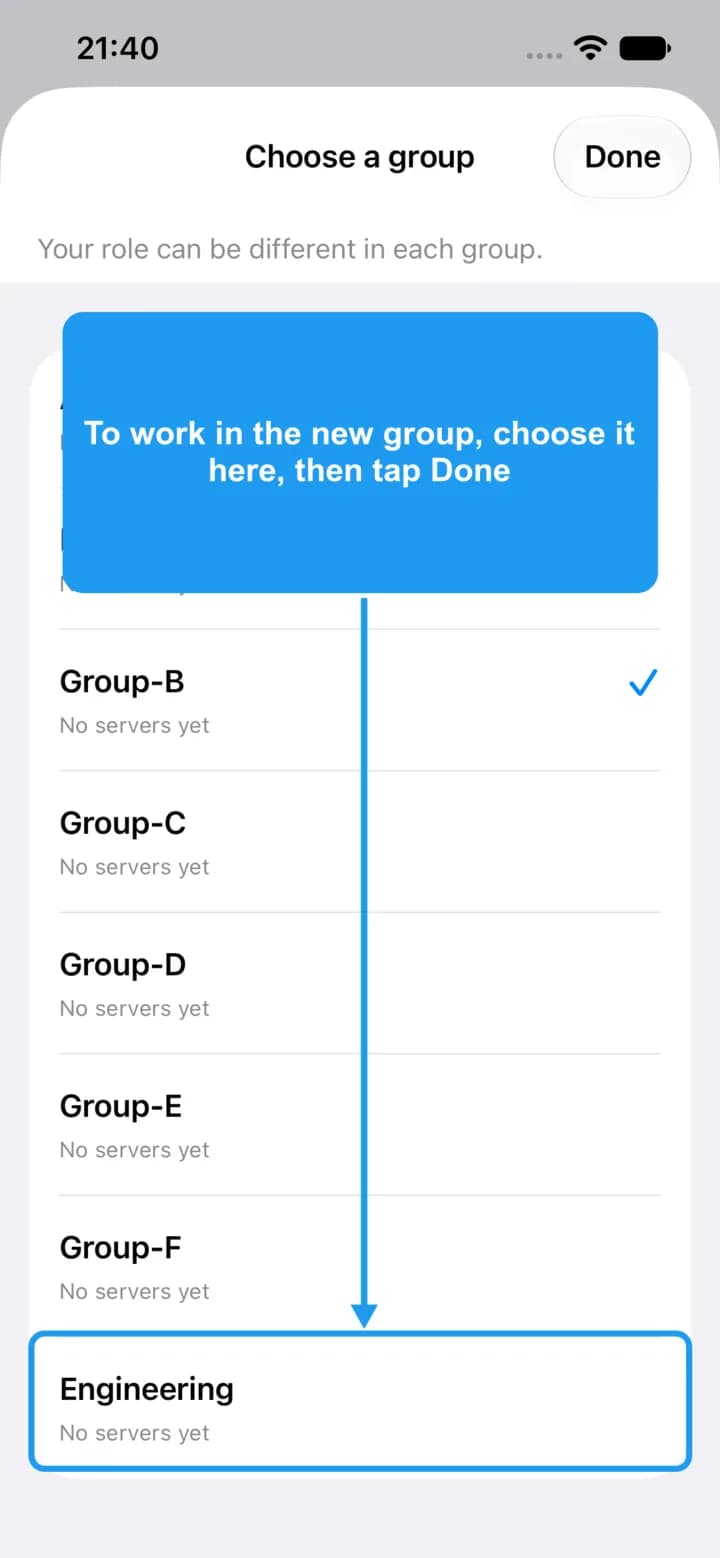
The Team tab always shows one group at a time. To work in the new group, tap Switch (or the group name under the connection name at the top), choose it, and tap Done.
Next: invite people to the group.