Create a rule
A rule says who may connect to which server, as which user, for how long, and who must approve each connection.
Before you start
1. Before you start
Add the server first (see Add a server). Without a rule, nobody can connect to it, and the server shows a warning.
Each connection request goes to the approvers in the rule. The approver sees it on their iPhone and decides.
Open Rules
2. Open Rules
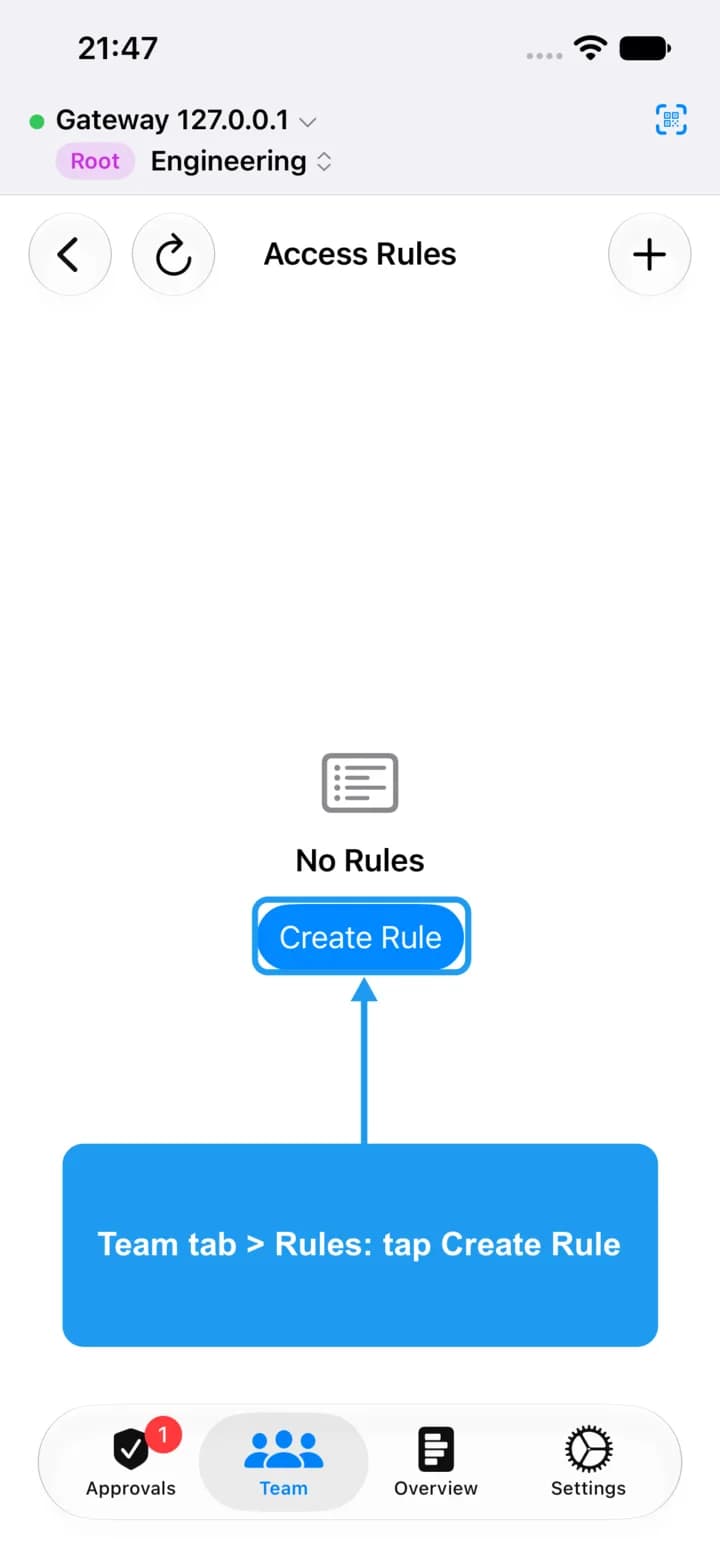
On the Team tab, tap Rules, then tap Create Rule.
Name the rule
3. Name the rule
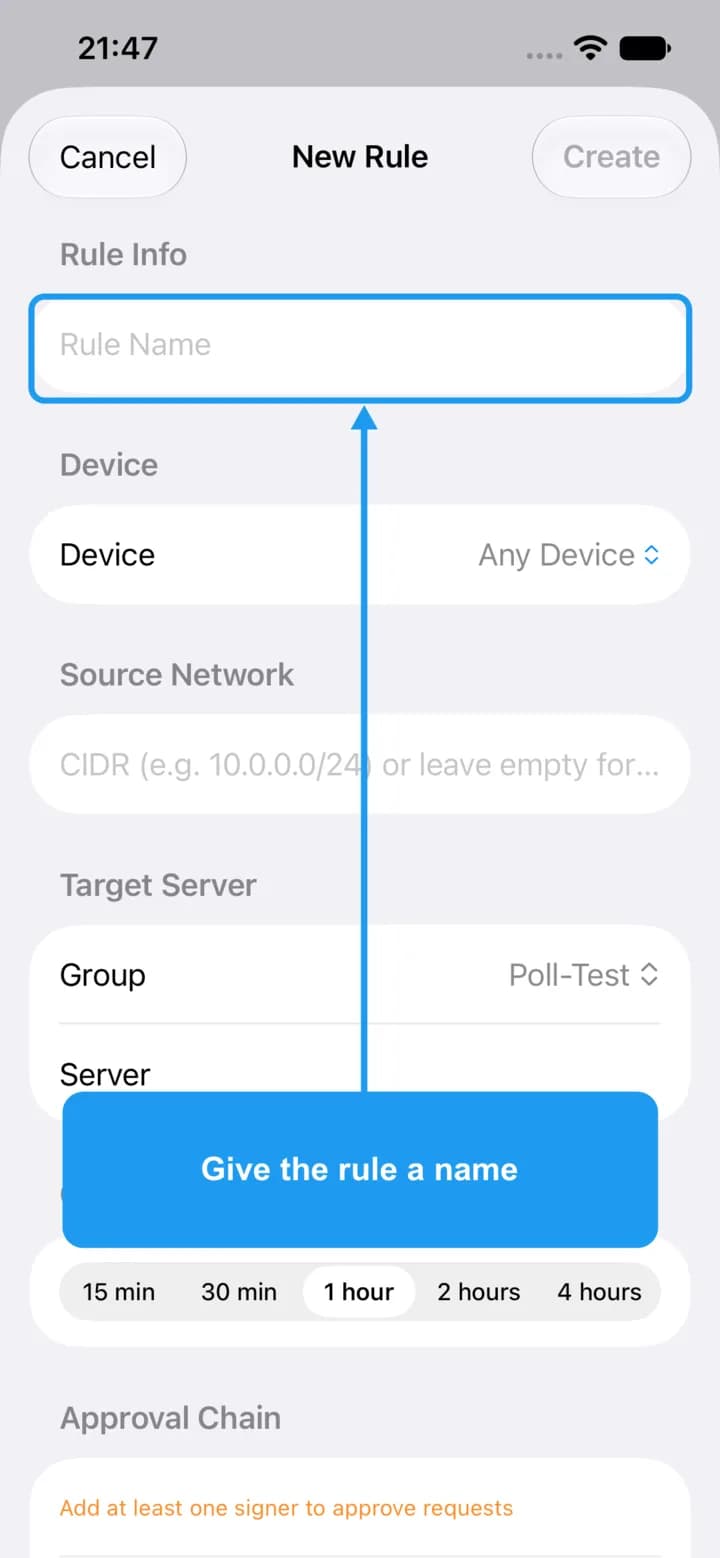
Give the rule a name you will recognise.
Choose the server
4. Choose the server
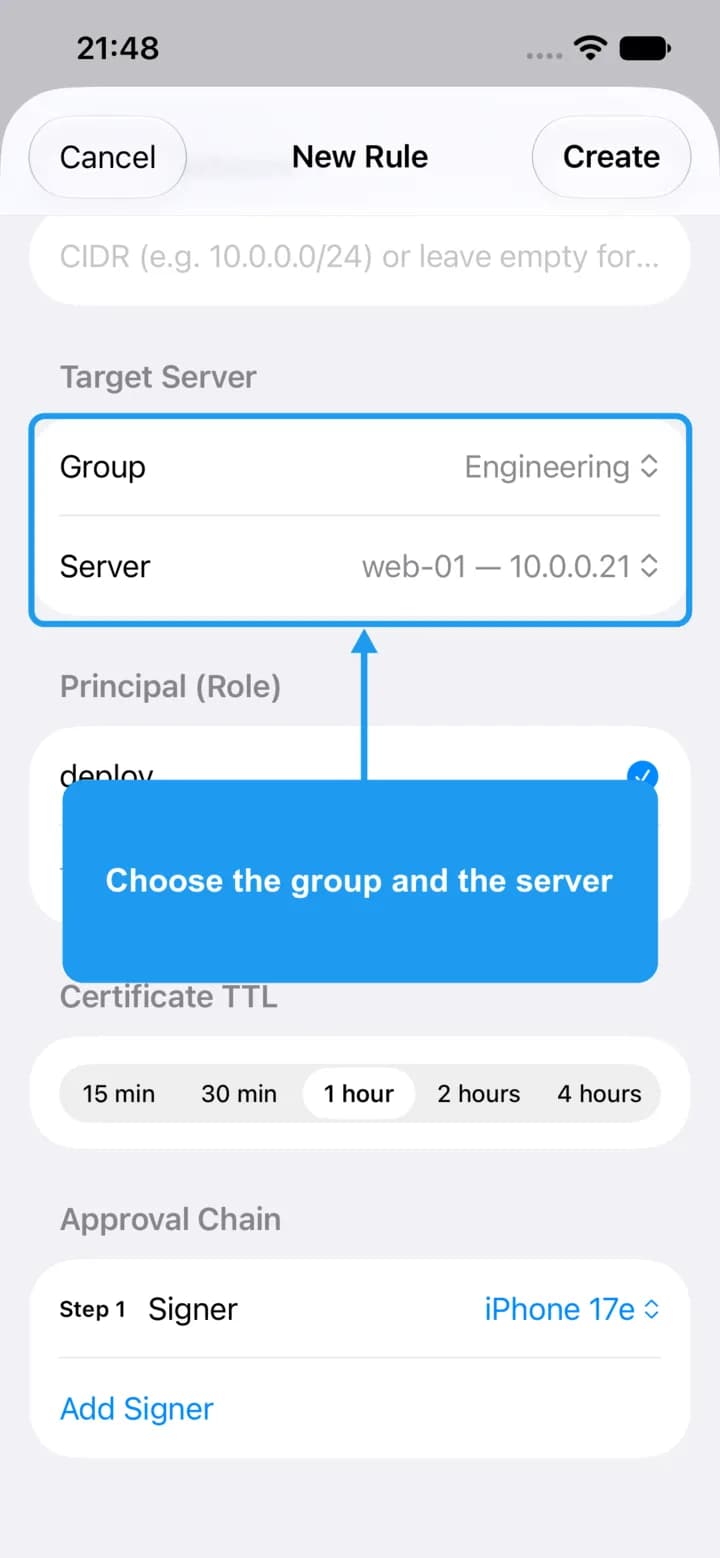
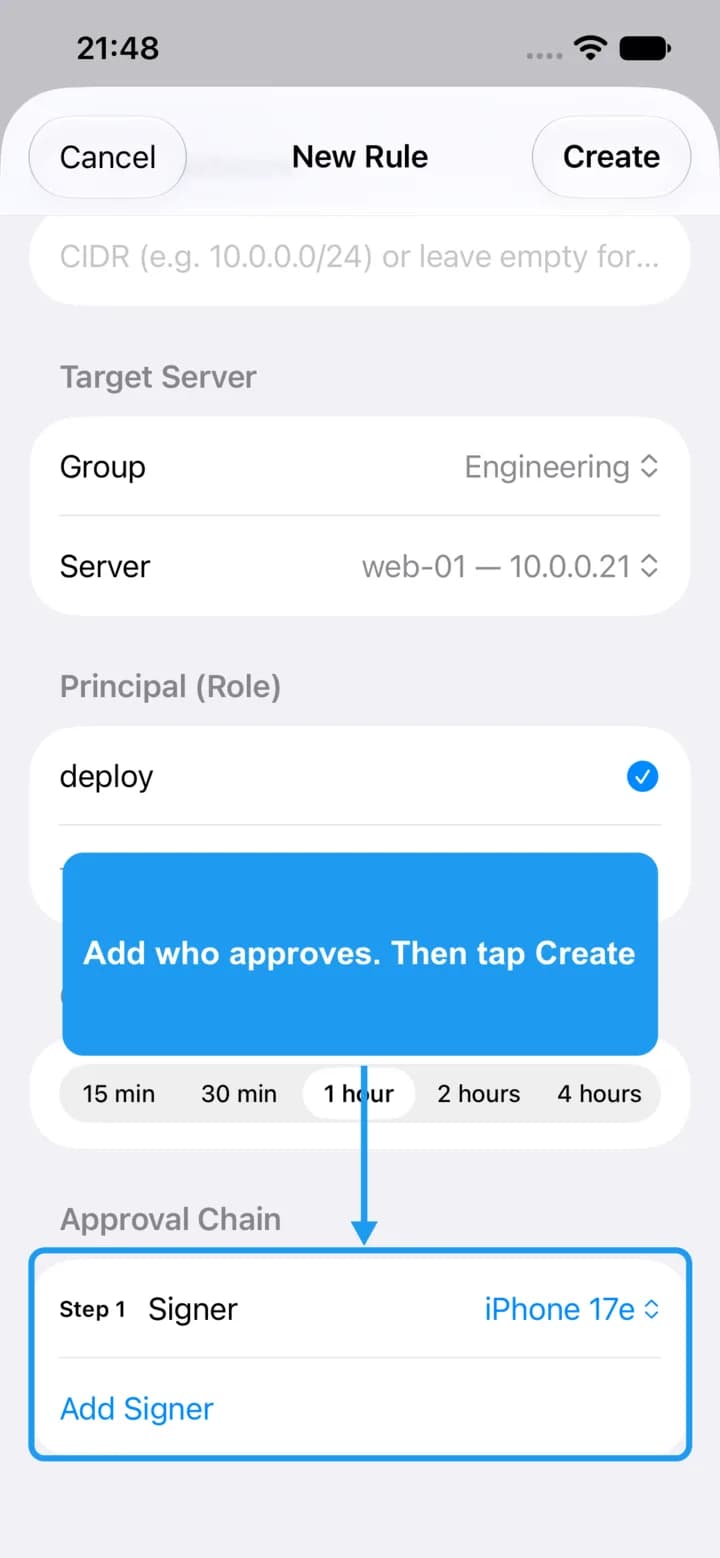
Under Target Server, pick the group and the server. The SSH user (principal) the server offers is filled in for you.
Device and Source Network are optional. Leave Device on Any Device and Source Network empty to allow every enrolled computer from anywhere. Certificate TTL is how long the SSH certificate lasts: 1 hour by default.
Choose who approves
5. Choose who approves
Under Approval Chain, tap Add Signer and pick who approves each connection. Add more signers if several people must approve in turn. Then tap Create.
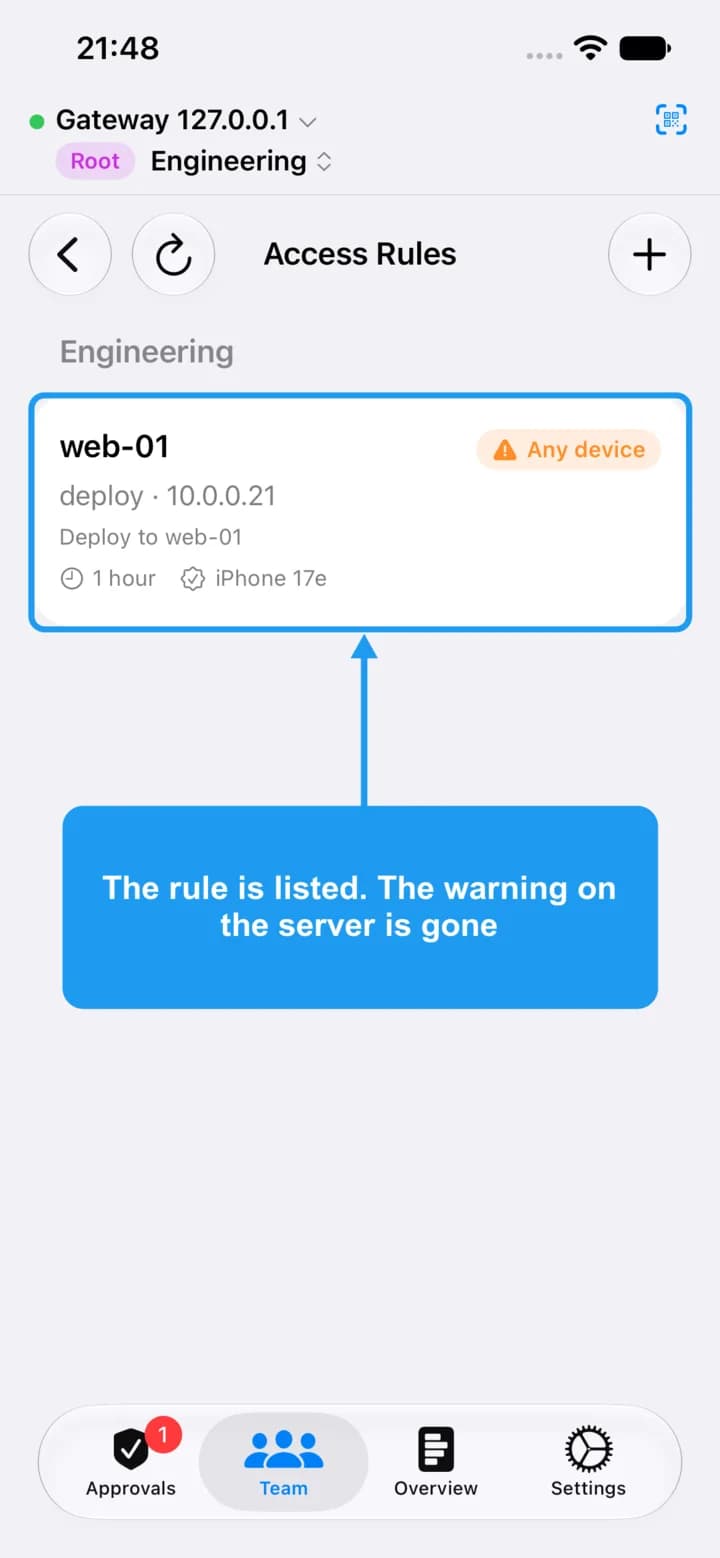
The rule is live
6. The rule is live
The rule appears under its group and the warning on the server is gone. People in the group can now ask to connect.