Approve a connection
When someone asks to connect, the approvers get a notification on their iPhone. Tap it, check the request and decide.
Open the notification
1. Open the notification
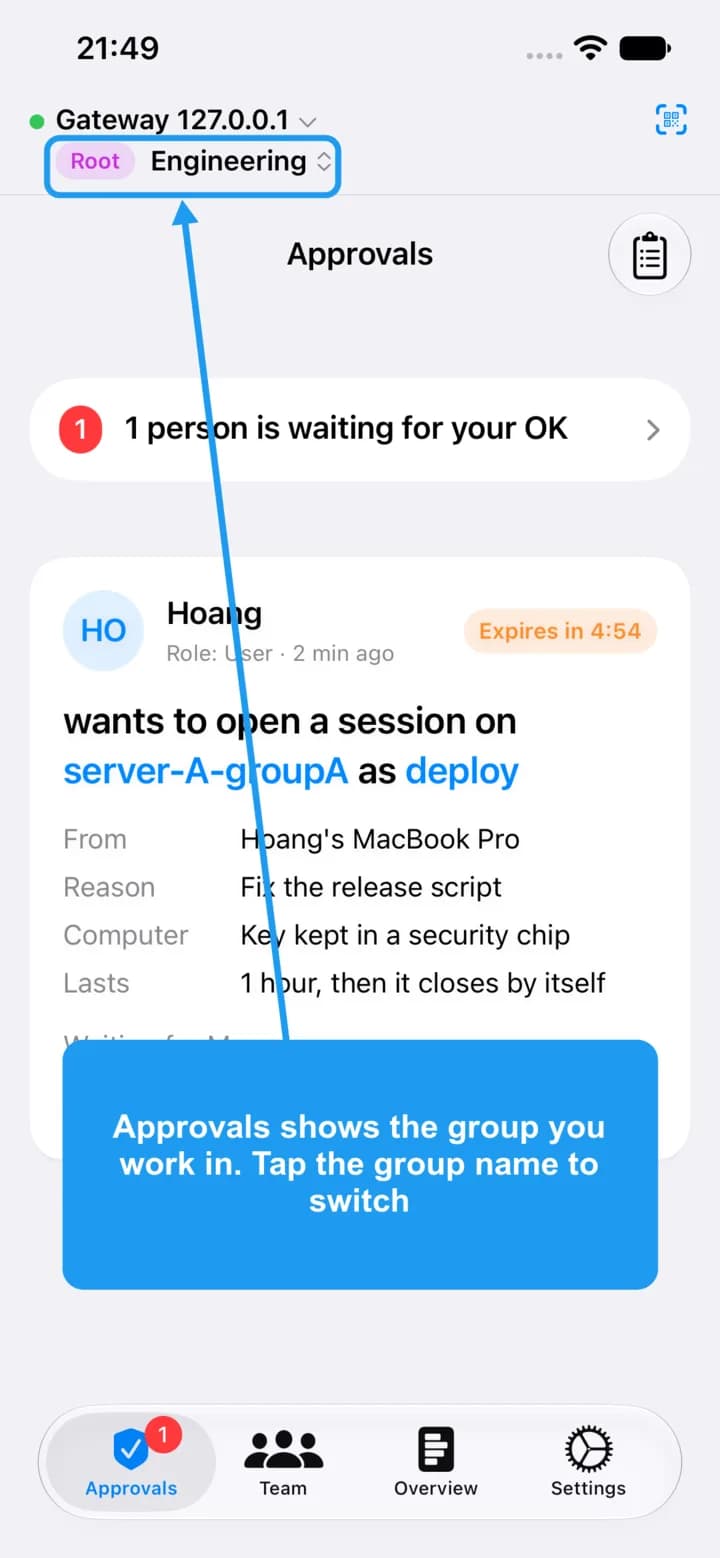
Tap the OSH notification. OSH - Signer 1.0.9 (81) or later opens the Approvals tab and switches to the group of the server, so you do not have to look for it.
Turn on notifications when the app asks. Without them, open OSH - Signer and look at the Approvals tab: a red number means requests are waiting.
Check the group
2. Check the group
Approvals shows one group at a time. If you work in several groups, the group name under the connection name tells you which one you are looking at. Tap it to switch.
Read the request
3. Read the request
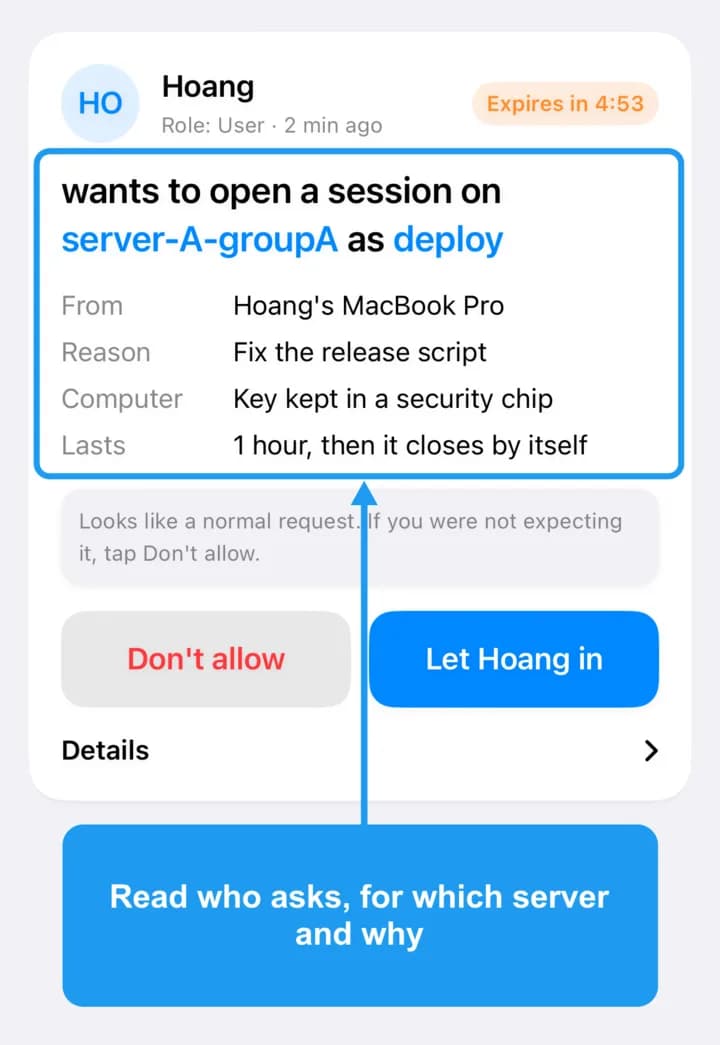
Check who is asking, which server and which user, why, and from which computer. The card also says how long the access lasts.
Decide
4. Decide
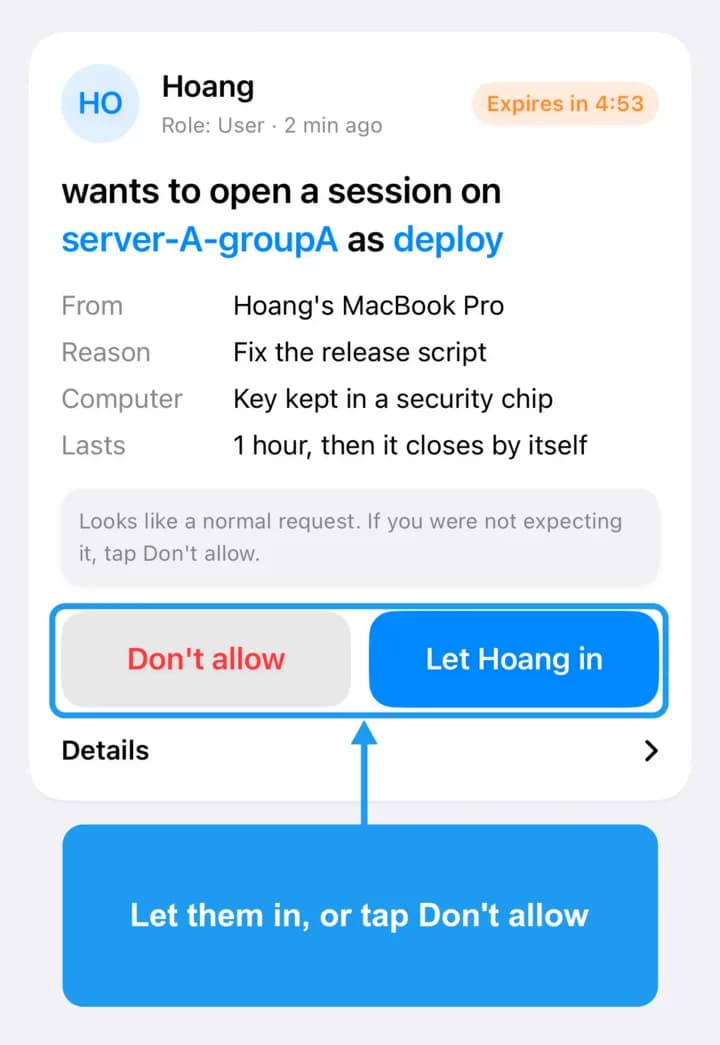
Tap Let them in to approve, or Don't allow to refuse. Approving asks for Face ID. If you were not expecting the request, tap Don't allow.
The person's laptop then gets a short-lived SSH certificate and connects. Nothing is stored: when the time runs out, the access ends by itself.