
Add a computer
A computer is a laptop that asks for SSH access. A group admin creates an invite code on the iPhone, the laptop enrols with it in OSH - Client, and the admin approves it.
Before you start
1. Before you start
You need OSH - Client 1.7.0 or later on the laptop, and an admin of the group with OSH - Signer on their iPhone. Download OSH - Client from the Documentation page.
The code ties the laptop to a group, so it joins the right team from the start. Codes need a gateway that supports them; if the app shows an error when you create one, ask your administrator to update the gateway.
Open Computers on the iPhone
2. Open Computers on the iPhone
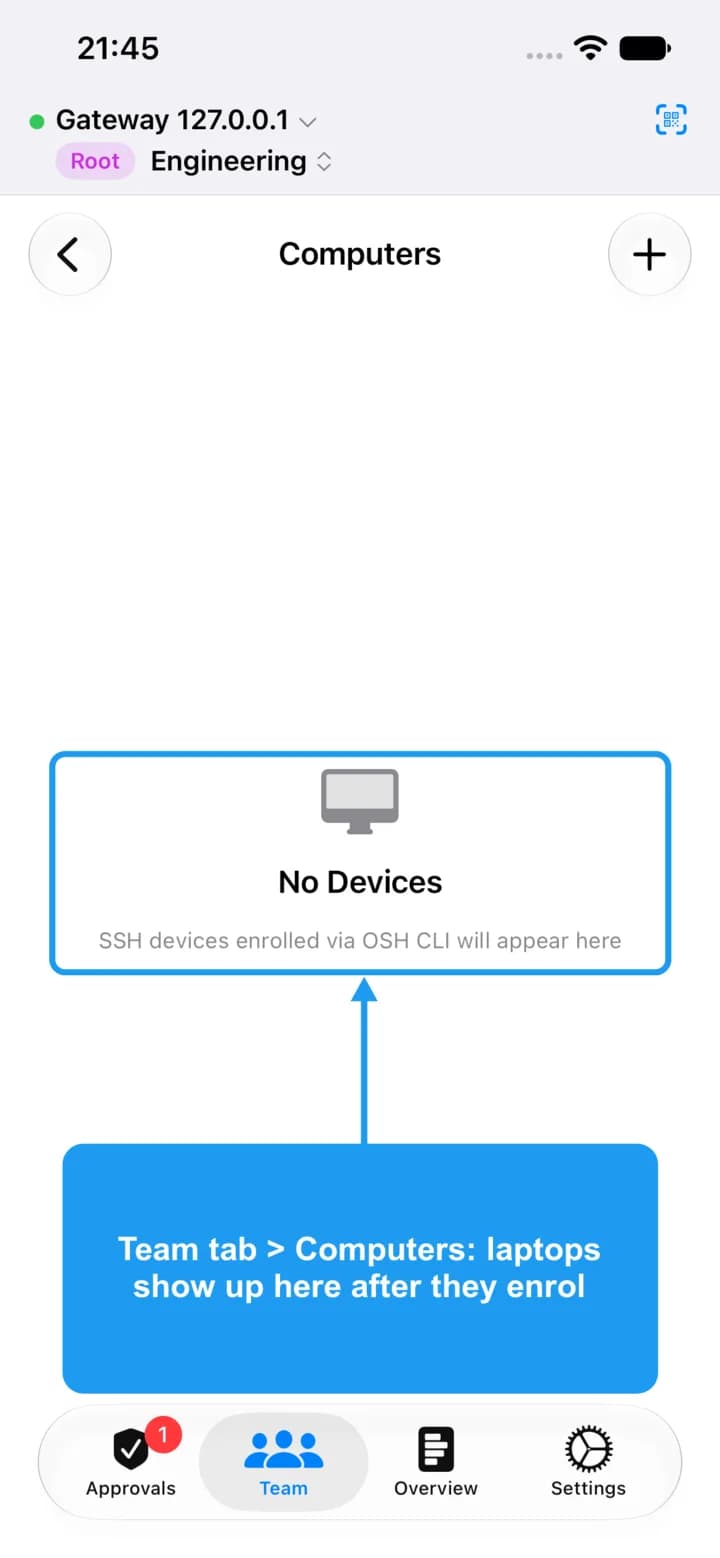
Group admin: choose the group you are working in, open the Team tab and tap Computers. Enrolled computers are listed here. Tap + in the top right corner.
Create a code
3. Create a code
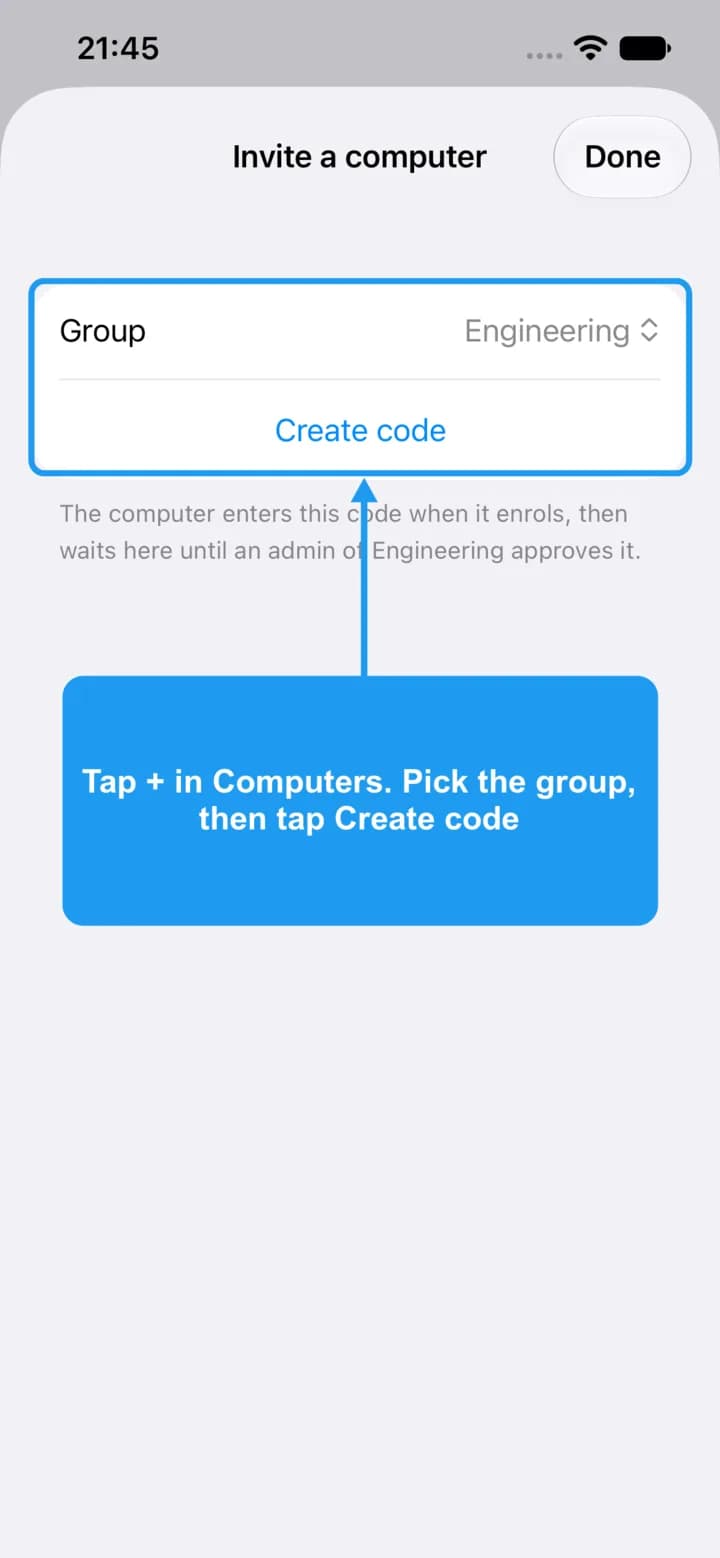
Pick the group the computer will join, then tap Create code. Give the code to the person who owns the laptop.
On the laptop: enter the Gateway URL
4. On the laptop: enter the Gateway URL
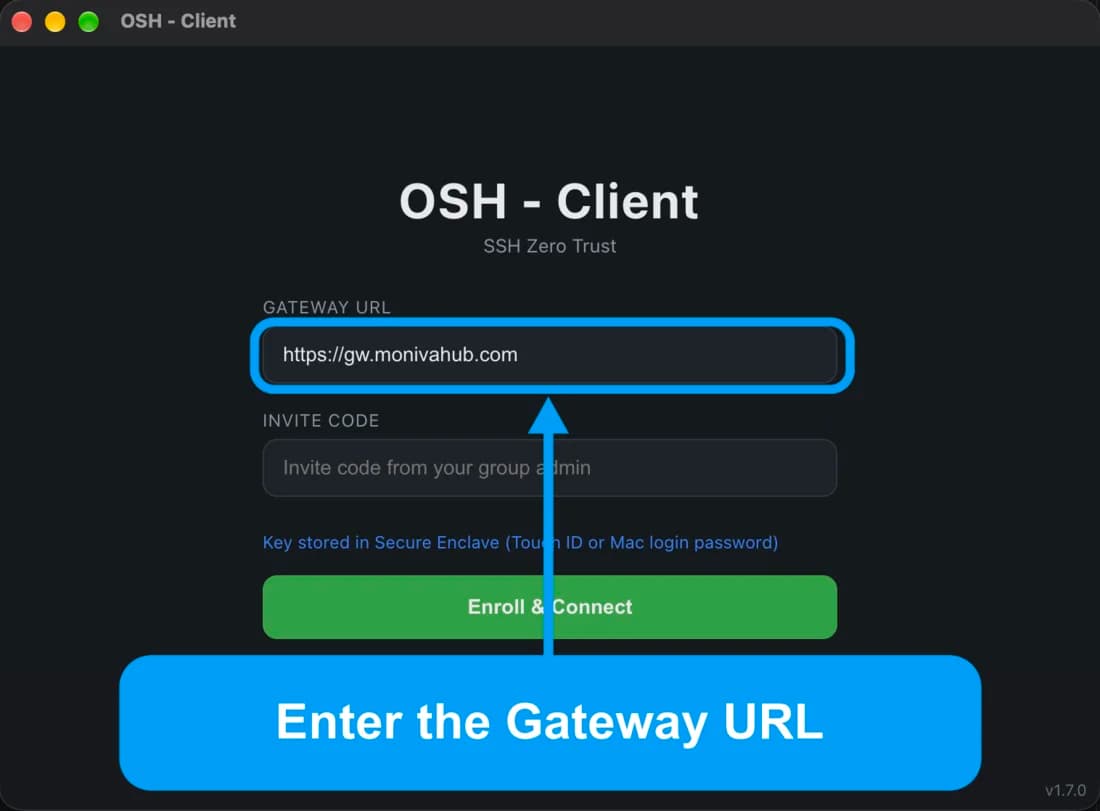
Open OSH - Client. In Gateway URL, enter the address your administrator gave you.
Enter the invite code
5. Enter the invite code
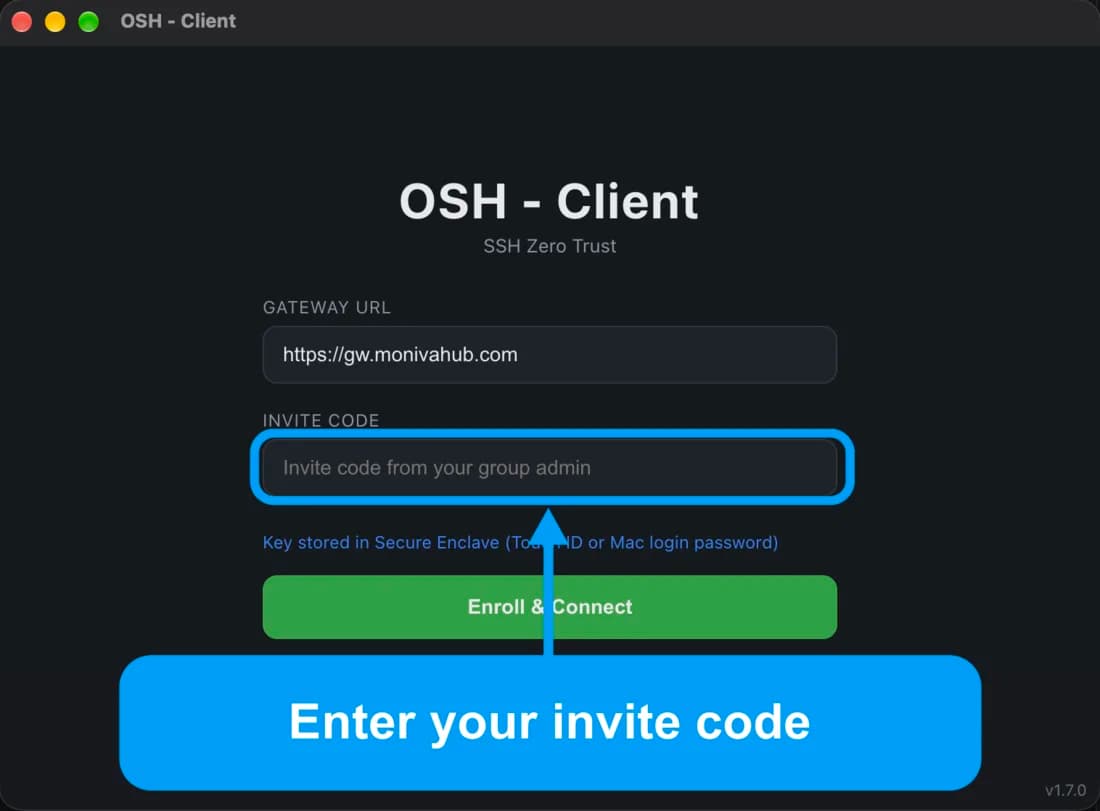
In Invite code, enter the code from the group admin.
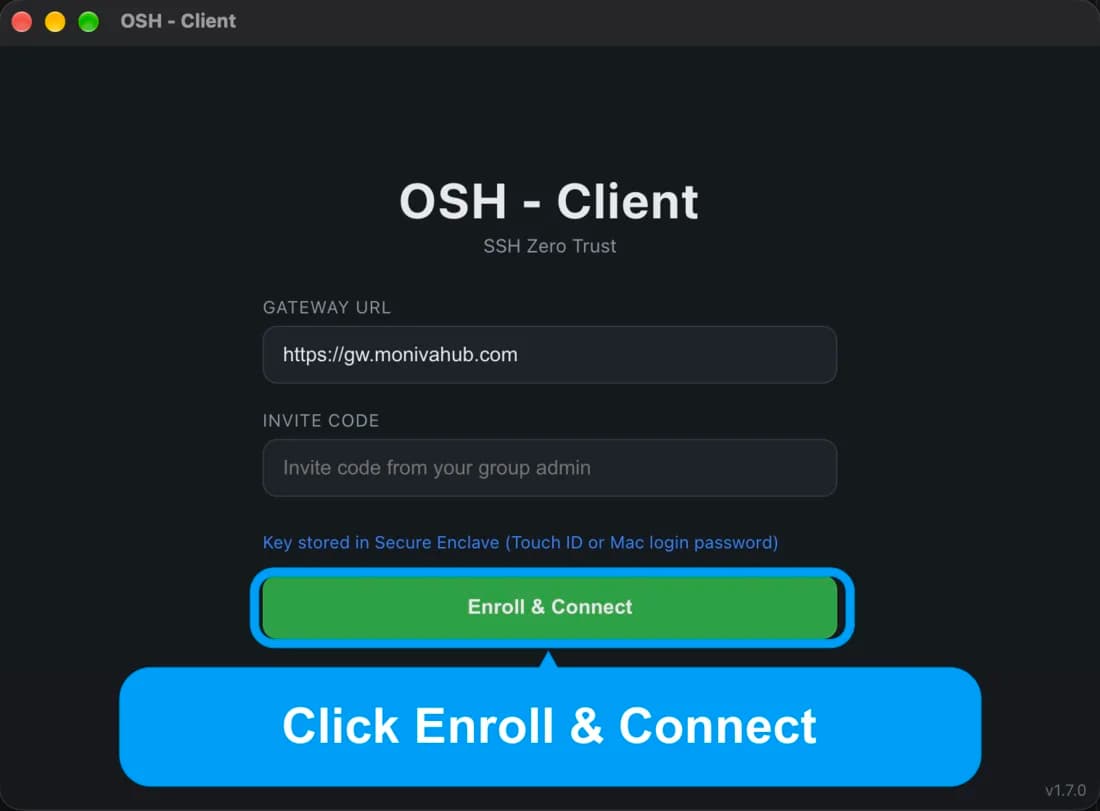
Enroll & Connect
6. Enroll & Connect
Click Enroll & Connect. OSH - Client creates a key stored in the Secure Enclave and asks for Touch ID or your Mac login password to protect it. The laptop then waits for an admin to approve it.
Approve the computer on the iPhone
7. Approve the computer on the iPhone
Back in Team > Computers, the laptop appears as Pending. Swipe it to the left and tap Approve, or tap the computer and choose Approve Device. Swipe and tap Reject to turn it away.
Once approved, the computer shows as Active and can ask for SSH access to the servers its group has rules for. The iPhone screens for a pending computer are not shown here.