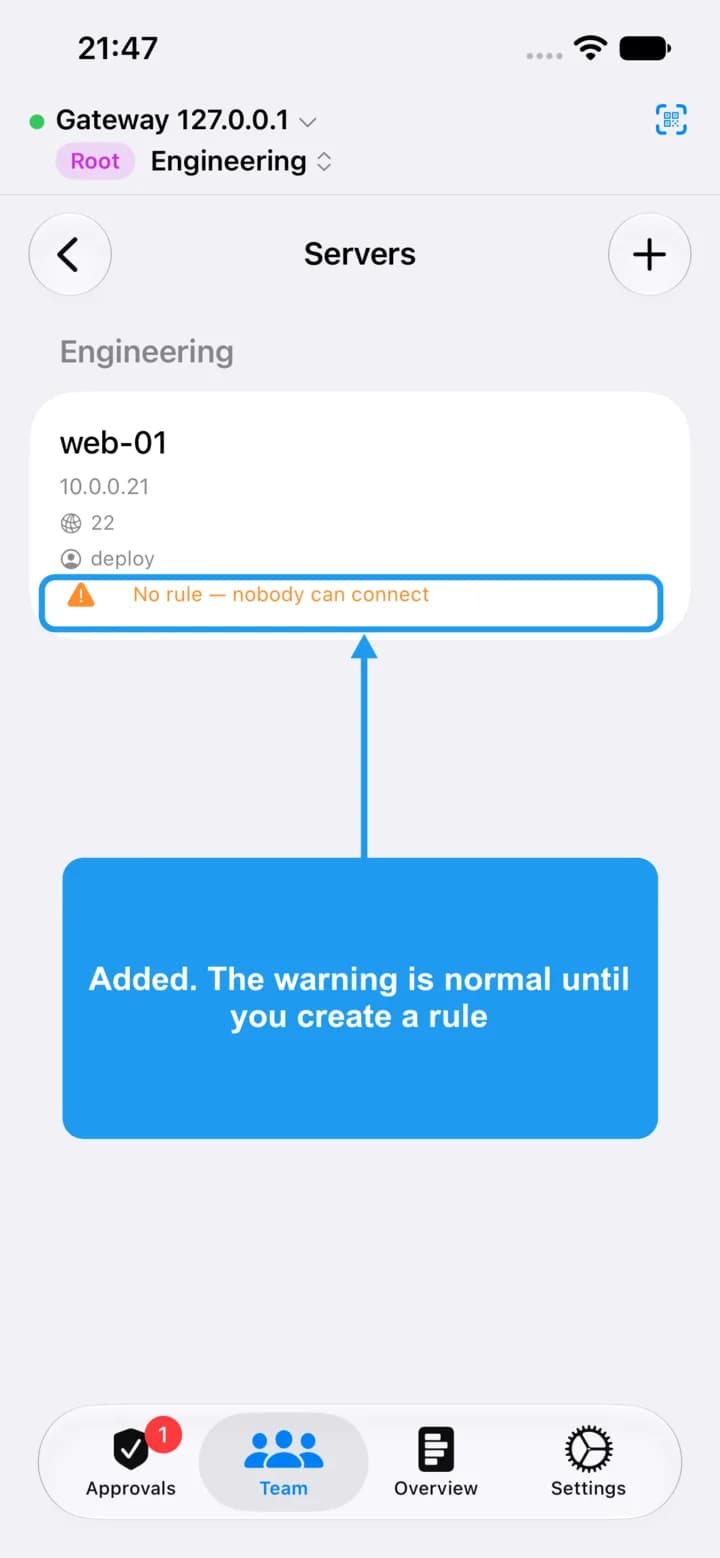
Add a server
Tell OSH which servers people may connect to, and which user names they may log in as. Admins and root do this on the iPhone.
Before you start
1. Before you start
The server must trust your OSH CA (see Trust the CA on the Documentation page) before anyone can connect. Adding a server here does not change the server itself.
A server belongs to one group.
Open Servers
2. Open Servers
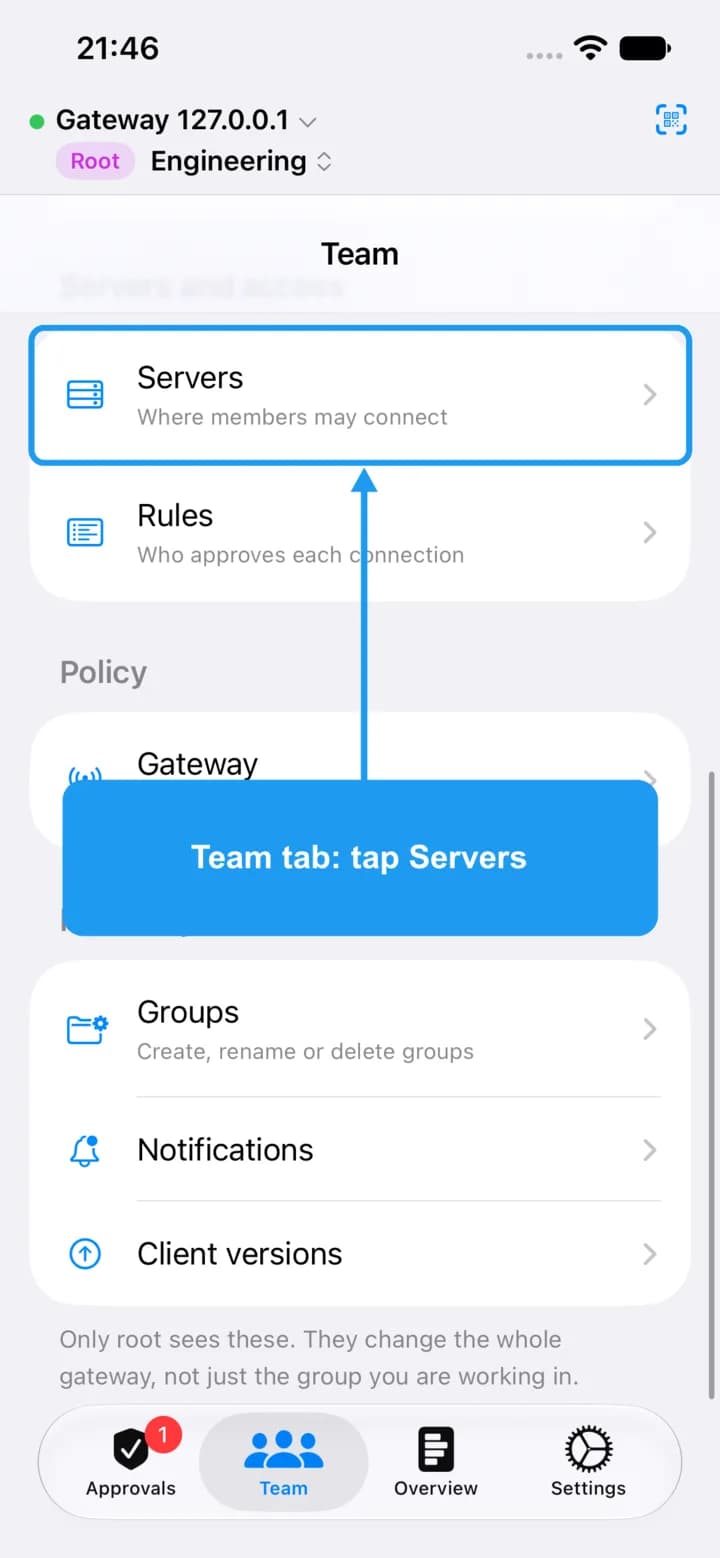
On the Team tab, tap Servers.
Add a server
3. Add a server
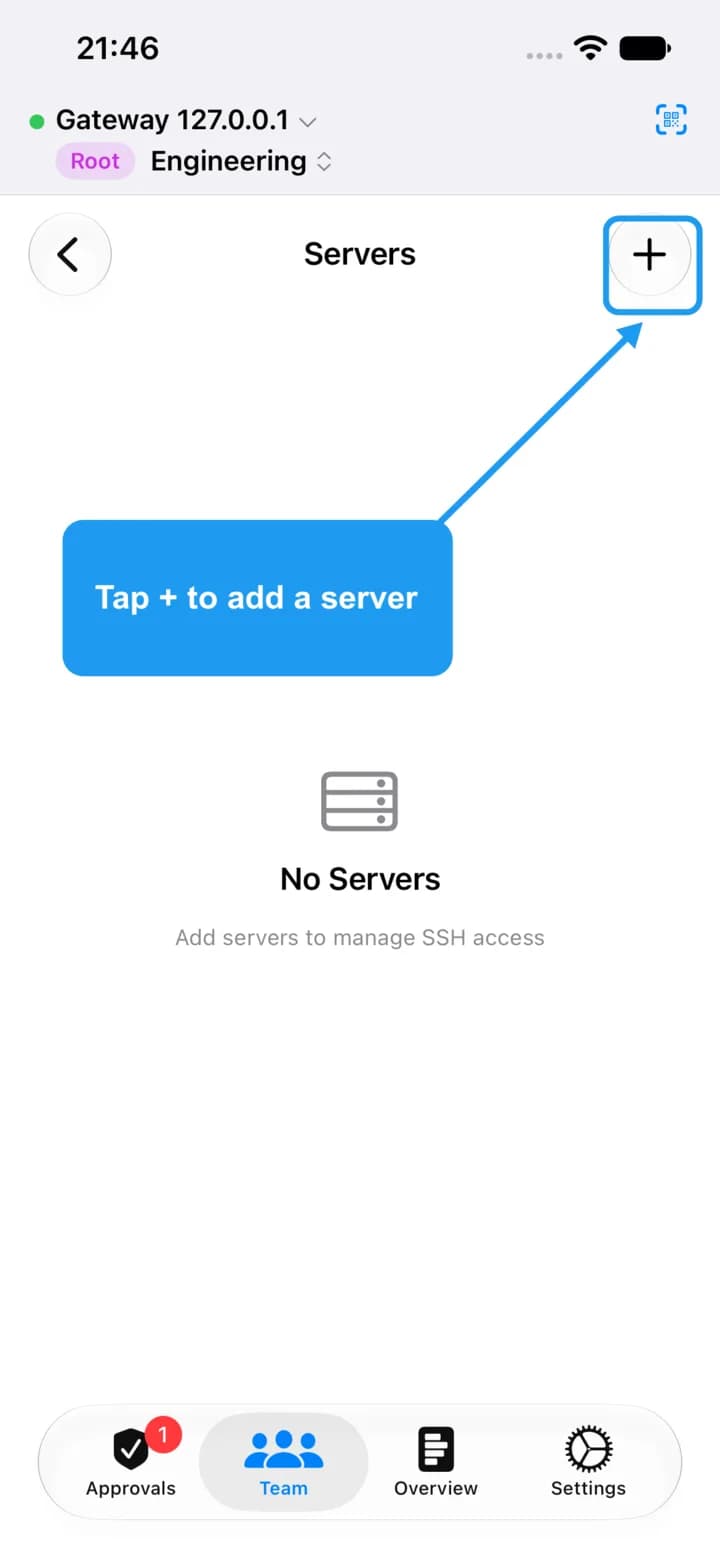
Tap + in the top right corner.
Name and address
4. Name and address
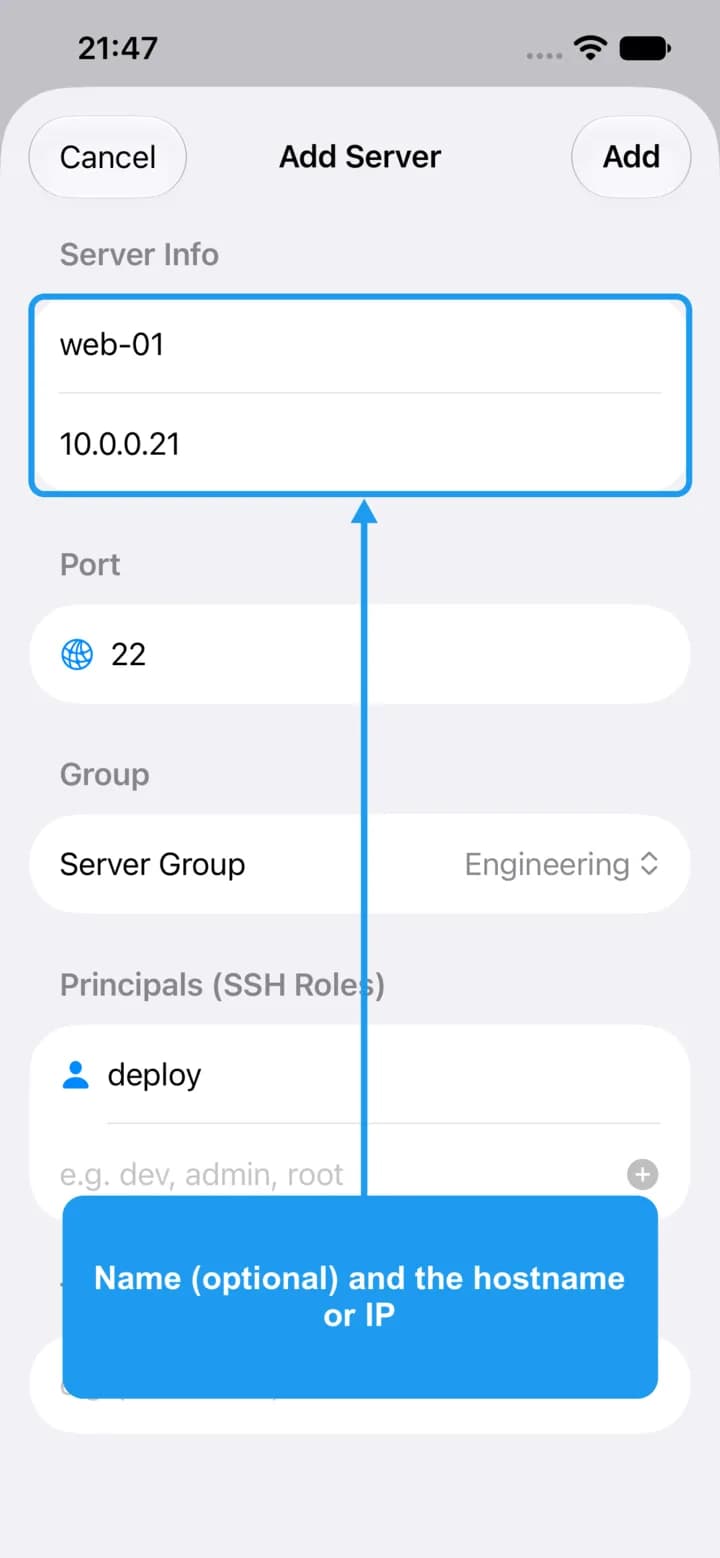
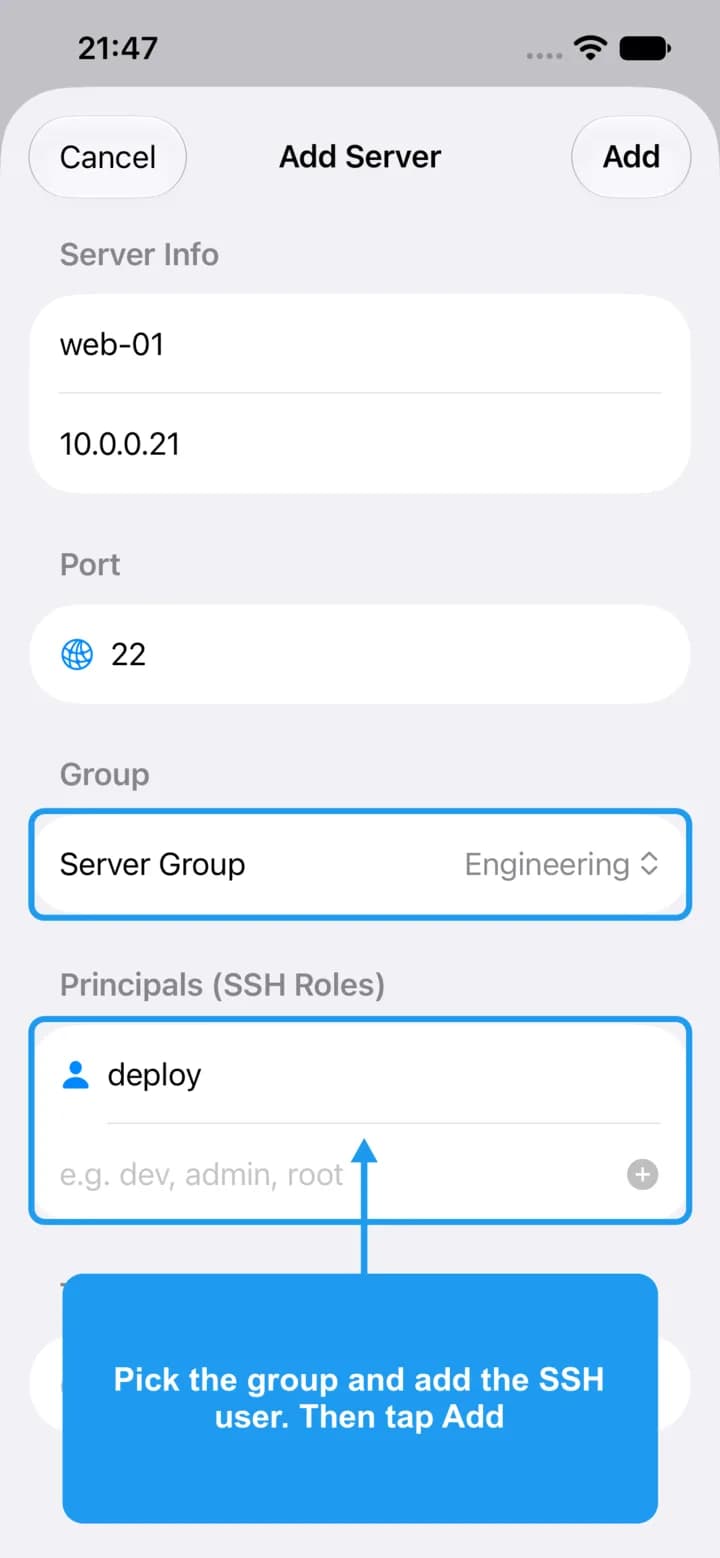
Type a name (optional) and the hostname or IP address people connect to. The port is 22 unless your server uses another one.
Group and SSH user
5. Group and SSH user
Pick the group the server belongs to. Under Principals, type the SSH user name people log in as (for example deploy) and press return. Then tap Add.
The server is added
6. The server is added
The server shows in its group. The orange warning means no rule lets anyone in yet. That is expected: create a rule next.